
Search the Community
Showing results for tags 'File Management'.
Found 1 result
-
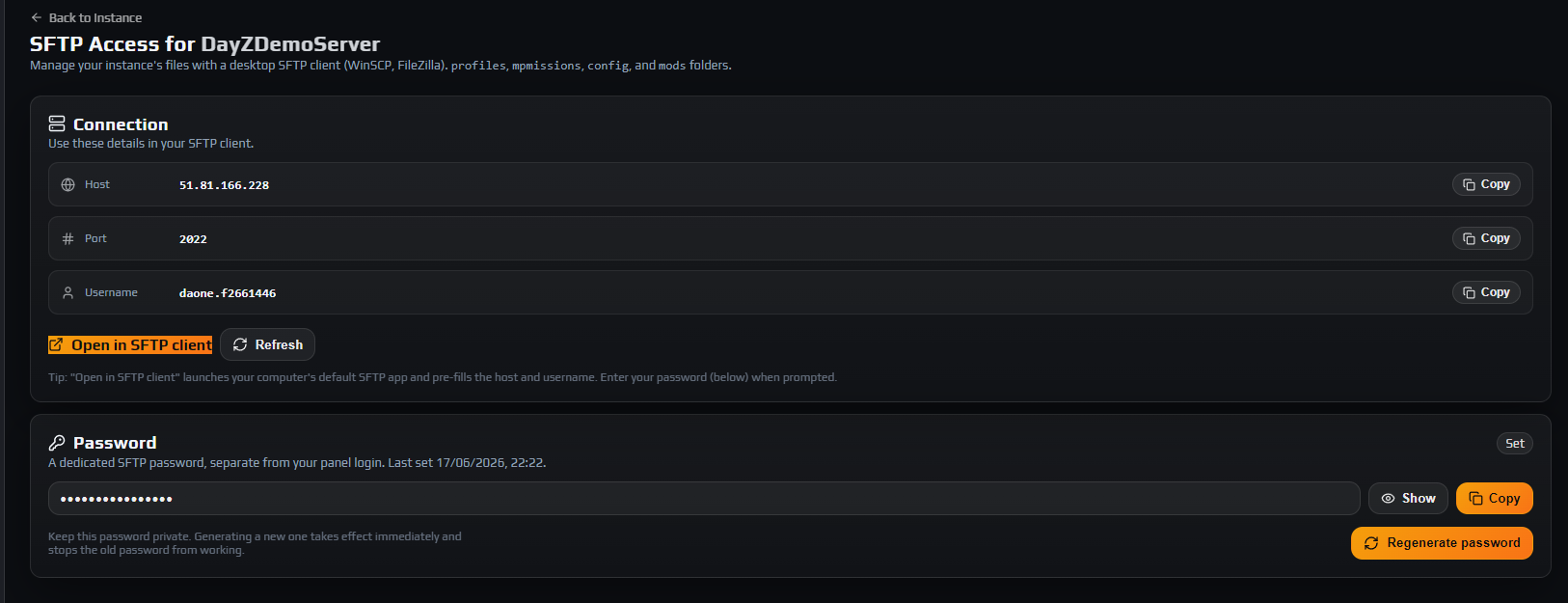 Everything you need to connect to your DayZ server over SFTP sits on one page: open your instance, click the SFTP tab, and the Connection card gives you the Host, the Port (2022) and your Username, each with a Copy button. The Password card below holds a dedicated SFTP password, separate from your panel login. This guide sets up WinSCP and FileZilla step by step, explains the unusual username format, and covers the two mistakes that cost real time: editing files while the server runs, and regenerating the password without updating saved sessions. On this page Open the SFTP tab and read the Connection cardGenerate or copy your SFTP passwordConnect with WinSCPConnect with FileZillaFind your way around the four foldersUpload and download without breaking anythingGive staff SFTP access without sharing your passwordTroubleshootingFrequently asked questions Before you start A provisioned instance and a panel account with the Allow SFTP access permission on it. Instance owners have it automatically.An SFTP client. This guide uses WinSCP and FileZilla, both free on Windows.Outbound TCP on port 2022 allowed by your own network — some corporate and school networks permit only 80 and 443. The SFTP tab holds every value your client needs — host, port 2022, username and a dedicated SFTP password. 1. Open the SFTP tab and read the Connection card Go to Instances → your instance → SFTP. The header reads SFTP Access followed by your instance name, and the Connection card lists three values, each with its own Copy button: Host — the machine your instance runs on. Depending on the node this is either a hostname or the same IP you connect to in game.Port — 2022, not the usual 22. Leave your client on the default and it will fail to connect.Username — your panel username, a dot, and eight hexadecimal characters, for example yourname.4f2a91c0. That trailing block is the first eight characters of the instance’s internal id, and it is how the SFTP server knows which instance you want. One account with three servers therefore has three different SFTP usernames. Copy it verbatim — a login built from your panel username alone is rejected. Note: Open in SFTP client hands the host, port and username to your computer’s default SFTP application, so you only type the password. If nothing happens when you click it, set the client up manually as below. 2. Generate or copy your SFTP password Scroll to the Password card. Its badge reads Set or Not set, and the subtitle gives the date it was last set. The first time you open this tab with no password on file, the panel generates one immediately and confirms with SFTP password generated. — so usually there is nothing to do but reveal it. Use Show to unmask the value and Copy to take it, then store it in your password manager. For a fresh one, click Regenerate password. Careful: This password belongs to your panel account, not to one instance. Regenerating takes effect immediately and stops the old password working on every instance at once, so saved sessions in WinSCP or FileZilla and any script that pulls backups fail until you update them. Two other states exist. Not set with an empty field means none exists yet — click Generate password. The message This password was set before it could be shown here. Generate a new one to view and copy it. means yours predates the panel storing a displayable copy: it still works if you know it, but cannot be shown. Note: This is not your admin or RCON password. The SFTP tab is the only place it lives. The SFTP password is per panel account — regenerating it invalidates the old one everywhere at once. 3. Connect with WinSCP WinSCP opens its Login dialog on launch; if it does not, use Session then New Session. Fill in four fields: FieldValueFile protocolSFTPHost namethe Host from the Connection cardPort number2022User namethe full Username, dot and eight characters includedPasswordyour SFTP password Click Save if you want the session kept, then Login. The first connection asks you to accept the server’s host key fingerprint — normal, and once per machine. You then land in a directory holding your four folders. Note: If WinSCP fails without ever prompting for a password, an SSH agent is offering keys and burning the five attempts the server allows. Under Advanced → Authentication, clear the public-key and agent options. WinSCP configured for a DayZ server: protocol SFTP, port 2022 and the per-instance username. 4. Connect with FileZilla FileZilla’s Quickconnect bar defaults to plain FTP, which will not work here, so use the Site Manager: Open File → Site Manager and click New site. Name it after your instance.Set Protocol to SFTP - SSH File Transfer Protocol.Paste the panel’s Host into Host, and 2022 into Port.Set Logon Type to Normal, then paste the full Username into User and your SFTP password into Password.Click Connect and accept the host key when prompted. To avoid storing the password, choose Ask for password as the logon type instead. 5. Find your way around the four folders SFTP shows the same four shares as the panel’s File Browser, and nothing else: profiles — server logs (.ADM, .RPT, script_*.log) and profile data: full log history, rather than the live tail.mpmissions — the mission folder, holding both your economy XMLs and your persistence.config — serverDZ.cfg, the BattlEye keys directory, and the whitelist.txt, ban.txt and priority.txt lists.mods — installed Workshop mods. Persistence lives at mpmissions/<world>/storage_*/. players.db (with its -wal and -shm companions) holds every character and inventory; the rest of the folder holds built structures, vehicles and other world state. Pull these down before anything risky — see taking a manual backup over SFTP. Loot and economy editing happens one level up, in mpmissions/<world>/: types.xml, events.xml, cfgspawnabletypes.xml. There is no GUI for these, so SFTP plus a text editor is the workflow — editing types.xml and the loot economy covers them. Note: The DayZ server executable and the BattlEye working directory are deliberately not exposed — your session root holds only the four shares. Every SFTP session lands in a root holding just four folders: profiles, mpmissions, config and mods. 6. Upload and download without breaking anything SFTP exists mainly to lift the size ceiling: the web File Browser accepts uploads up to 300 MB, SFTP up to 2.5 GB. Data loss risk: Never write to storage_* while the instance is Running. DayZ holds players.db open and rewrites the storage folder on shutdown, so an upload under a live server is either ignored or flushed away, and a partial write to an open database can corrupt every character. Stop the instance, wait for Stopped, then upload. The same logic applies more gently to configuration: serverDZ.cfg and the economy XMLs are read once at boot, so a mid-session edit does nothing until the next start. Careful: Executable and script types are rejected outright: .exe, .dll, .bat, .cmd, .ps1, .sh, .msi, .scr and .com. If a mod ships a helper program, open a ticket rather than renaming the file to get it past the filter. Two structural limits round it off. Renaming is blocked in config and mods, which hold template-managed files, so upload under the final name instead. And serverDZ.cfg, the keys directory, whitelist.txt, ban.txt, priority.txt and the top-level mod folders cannot be deleted at all — overwrite those. 7. Give staff SFTP access without sharing your password Because the password is tied to a panel account, handing yours to a helper gives them your whole account. Add them under Members instead and let them generate their own. Two layers apply. Allow SFTP access decides whether they can log in; the Files permissions decide what they can do once in. Read files is the floor — SFTP access without it is refused at login — while Write files adds upload, overwrite and folder creation, and Delete files adds deletion. The rights match the File Browser exactly, so SFTP is not a back door. A member without access sees You don't have SFTP access to this instance. Ask the instance owner to grant it from the Members page. Successful logins are recorded in the Audit Log under the SFTP category with the account and the file rights it was granted; client IP addresses are deliberately kept out. Note: API keys cannot read the SFTP details or set the password — both endpoints reject key authentication. These credentials are for humans signed in to the panel. Troubleshooting My SFTP client says authentication failed or invalid credentials Why it happens. One of three things: the username was typed without the dot and eight characters, the panel login password was used instead of the SFTP password, or the account lacks Allow SFTP access or Read files. The server returns the same generic failure for all three. How to fix it. Use Copy on the Username row and the Password card rather than retyping. If both are right, check those permissions in Members. The server allows five authentication attempts per connection, so a client offering SSH keys first can exhaust them first. SFTP worked yesterday and now the password is rejected on every server Why it happens. Someone clicked Regenerate password. The SFTP password belongs to the panel account, not one instance, so regenerating invalidates it everywhere at once — every saved session, plus any backup script using it. How to fix it. Open any instance’s SFTP tab, Show and Copy the current password, and paste it into each saved site. If nobody knows the current value, regenerate once more and update everything from that one value. The panel says my password was set before it could be shown here Why it happens. The password predates the panel keeping a displayable copy, so only the stored hash exists. It still works — the panel just cannot tell you what it is. How to fix it. Click Regenerate password, then Show and Copy the new value and update your clients. The old one cannot be recovered. Uploads fail with permission denied, or the file never appears Why it happens. Three limits look alike: the account lacks Write files, the file exceeds the 2.5 GB SFTP ceiling, or its extension is blocked (.exe, .dll, .bat, .cmd, .ps1, .sh, .msi, .scr, .com). A failed rename in config or mods is separate: those hold template-managed files. How to fix it. Check the extension first, then Write files in Members. For a rename, upload under the final name. Split any archive over 2.5 GB and reassemble it on the server. I edited types.xml or serverDZ.cfg over SFTP but the server has not changed Why it happens. The engine reads those files once, at boot, and a running server keeps the values it loaded for as long as it is up. How to fix it. Restart the instance — use Controlled Restart if players are on. For persistence the rule is stricter: stop the server before touching storage_*, because a running server rewrites that folder on shutdown and discards your upload. Frequently asked questions Is my SFTP password the same as my panel password? No. It is a separate credential, generated and shown only on the SFTP tab, and changing one has no effect on the other. Accounts that sign in through the community site with no local panel password get one the same way, so single sign-on never locks you out of file access. Why does my SFTP username have a dot and eight characters after it? Those eight hexadecimal characters identify the instance. The SFTP server has no other way to know which of your servers you want, so it reads the instance out of the username at login — hence a different SFTP username per instance, and the need to copy it exactly. Can I connect with plain FTP or FTPS? No. Only SFTP is offered, on port 2022, and the account is restricted to that protocol at the server, so FTP and FTPS fail even against the right host. This matters in FileZilla, whose Quickconnect bar assumes FTP: use Site Manager and select SFTP - SSH File Transfer Protocol. Can I use an SSH key instead of a password? No — authentication is by password only, and there is nowhere in the panel to register a public key. If your client tries keys first, turn that off in its site settings so it does not waste the five attempts the server permits per connection. Why can I only see four folders, and not the DayZ server files? Your session is confined to profiles, mpmissions, config and mods — the same shares the File Browser exposes. The game binaries and the BattlEye working directory sit outside that boundary, which is why the session root looks nearly empty. How large a file can I upload, and when should I use SFTP over the File Browser? SFTP takes single files up to 2.5 GB, against 300 MB in the web File Browser. Use the File Browser for quick XML tweaks and log reading, and SFTP for anything bulky — custom maps, large mod payloads, whole-folder uploads, and pulling your persistence down to your own disk. Related guides Getting started with the control panelMaking a manual backup over SFTPEditing types.xml safely