

You give someone access to your DayZ server without handing over any password by adding them as a sub-user on the instance’s Members tab and ticking only the permissions they need. Open Instances → your server → Members, type their panel username, choose from the nine permission groups, and click Grant access.
For scripts, bots and external tools you issue an API key instead, from API Keys in the sidebar. This guide covers both, plus how to use the Audit Log to see exactly what a staff member did.
Before you start
- You must be the instance owner, or one of our administrators. Nobody else can manage members — there is no permission flag that grants it.
- The person you are adding needs an existing panel account. Everyone with a DZSERVERS.HOST community account already has one.
- Their exact panel username — which is their community account name. Not an email address, not a Discord handle, not an in-game name.
- For API keys: a tool or script that can send an HTTP header, and somewhere safe to store a secret.
1. Open the Members tab
Open your instance and click Members in the tab bar. The page header reads Manage access followed by the instance name, with the owner’s username underneath.
The tab is only rendered for the instance owner and for our administrators. If anyone else reaches the URL directly, the page returns a single line saying that only the instance owner or an administrator can manage members.
Note: There is deliberately no permission flag for managing members. A sub-user you have given every other permission still cannot add, edit or remove staff, so delegation stops with you and cannot be quietly widened by someone else.
2. Add the sub-user by username
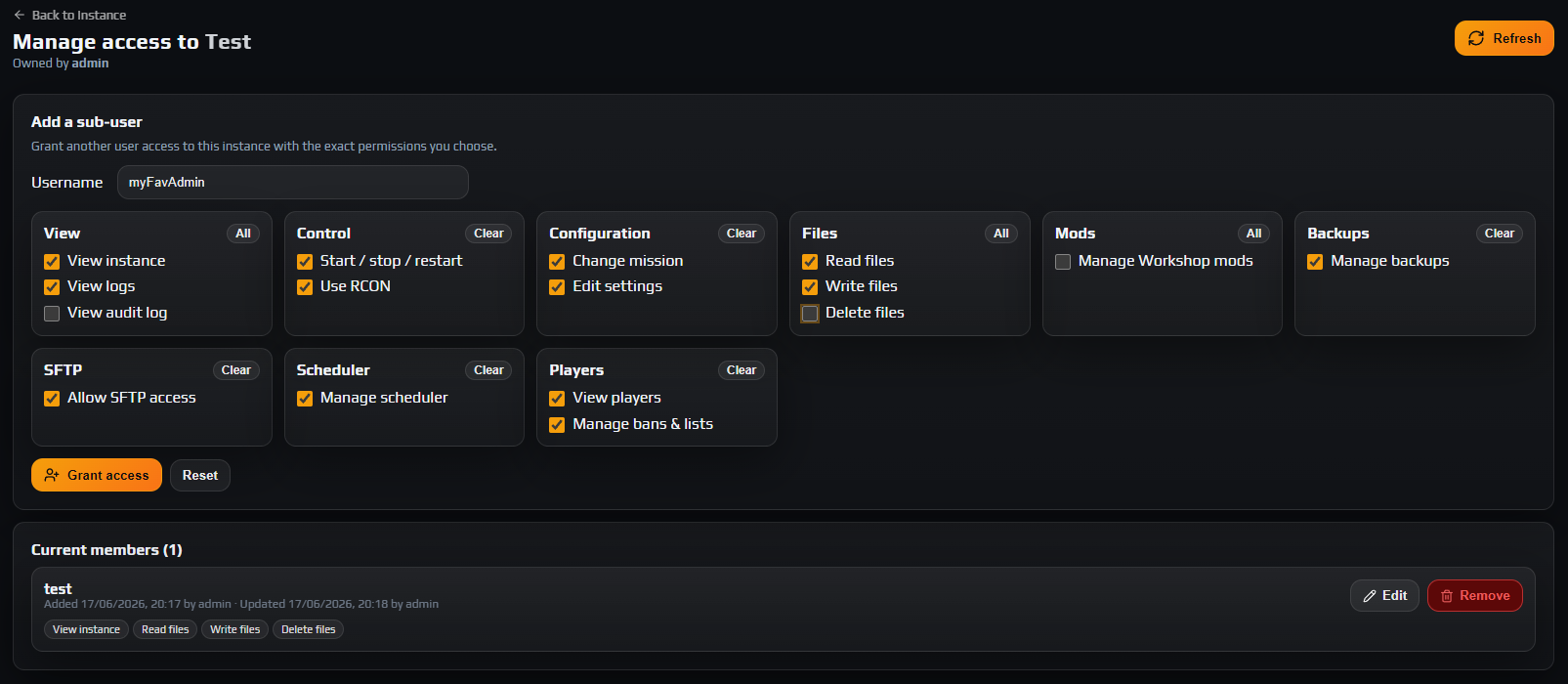
In the Add a sub-user card, type their account name into Username. Matching is case-insensitive, so capitals do not matter, but the name itself has to be exact.
Because every community account is mirrored into the panel, in practice you are typing their community username. If the panel tells you the user does not exist, see the troubleshooting section below rather than guessing at variations.
Notice that View instance is already ticked when the card opens. Leave it ticked. Without it the sub-user cannot open your instance page at all, which makes every other permission you grant unreachable. The form also refuses to submit with nothing selected.
When the permissions are set, click Grant access. Reset clears the form if you change your mind mid-way.
3. Understand the nine permission groups
The picker is a grid of nine cards. Each card has an All button that becomes Clear once everything in that group is on, which is the fastest way to switch a whole area on or off.
| Group | Permissions | What it unlocks |
|---|---|---|
| View | View instance, View logs, View audit log | The instance page with its metrics, FPS and command status, plus settings read-only. View logs adds the live log stream and its history; View audit log adds the Audit Log tab. |
| Control | Start / stop / restart, Use RCON | The power buttons on Overview, and the RCON console tab. |
| Configuration | Change mission, Edit settings | The Settings panel, which is the typed serverDZ.cfg editor, and the mission or map picker inside it. |
| Files | Read files, Write files, Delete files | Browsing and reading; then uploading, editing text, creating folders and moving; then deleting. |
| Mods | Manage Workshop mods | Add, install, update, remove and toggle Steam Workshop mods on this server. |
| Backups | Manage backups | Edit backup frequency, restore from a backup, and delete backups. |
| SFTP | Allow SFTP access | Connecting over SFTP. File operations inside the session follow the Files permissions above. |
| Scheduler | Manage scheduler | Create, edit and delete scheduled tasks — restarts, start and stop, RCON messages. |
| Players | View players, Manage bans & lists | The player roster, session history, playtime and connection info; then creating and revoking bans and editing the whitelist and priority queue. |
Permissions gate the tab bar itself. A sub-user does not see a greyed-out tab they cannot use — the tab is simply not rendered. Edit settings draws Settings, Read files draws File Browser, Manage Workshop mods draws Workshop Mods, and so on down the bar. That is why a staff member reporting a "missing" tab is almost always a permissions question, not a bug.
SFTP inherits from Files. Allow SFTP access on its own is not enough: the SFTP login is rejected outright unless Read files is also granted, and whether the session can write or delete mirrors Write files and Delete files exactly. See connecting to your server with SFTP for the client setup.
Data loss risk: Delete files reaches your persistence. Player characters and every built base live under mpmissions/<world>/storage_*/, so a sub-user with this flag can erase the entire server state in a few clicks. Manage backups includes deleting backups. Grant either only to people you would trust with the account itself.
4. Start from a role recipe rather than guessing
Sixteen checkboxes is a lot of freedom. These three recipes cover most real staff teams and are safe starting points you can adjust afterwards.
| Role | Tick | Deliberately left off |
|---|---|---|
| Moderator / in-game admin | View instance, View logs, View players, Manage bans & lists, Use RCON | Files, settings, mods, backups, scheduler. Add Start / stop / restart only if you want them able to bounce the server. |
| Builder / config editor | View instance, View logs, Read files, Write files, Allow SFTP access, Edit settings, Change mission | Delete files, RCON, bans. They can edit types.xml and the mission all day without being able to wipe anything. |
| Trusted co-owner | Every group, using each card’s All button | Nothing you can tick — but they still cannot manage members, because that is owner-only. |
Note: Permissions are checked on every request against what is stored right now, not against whatever was true when the person signed in. Tightening a member’s permissions takes effect immediately; they do not need to sign out and back in.
5. Review, edit and remove members
Below the add form, Current members lists everyone with access and a count. Each row shows:
- the username, in bold;
- when they were added and by whom, and once you change anything, when they were last updated and by whom;
- a badge for every permission they hold, so you can read a member’s access at a glance without opening anything.
Edit swaps the badges for the same picker, with Save and Cancel. Saving with every box cleared is refused on purpose — the panel tells you to remove the member instead, so nobody is left as a member row with no access at all.
Remove asks for confirmation, then deletes the membership. Their access ends at once: the instance disappears from their Instances list, the API refuses them, and their SFTP login for that instance stops being accepted.
Careful: Removing a member does not undo anything they did. If you are removing someone under bad circumstances, read the Audit Log first and change your admin and RCON password afterwards — see getting started with the control panel for where that lives.

6. Verify what staff actually did in the Audit Log
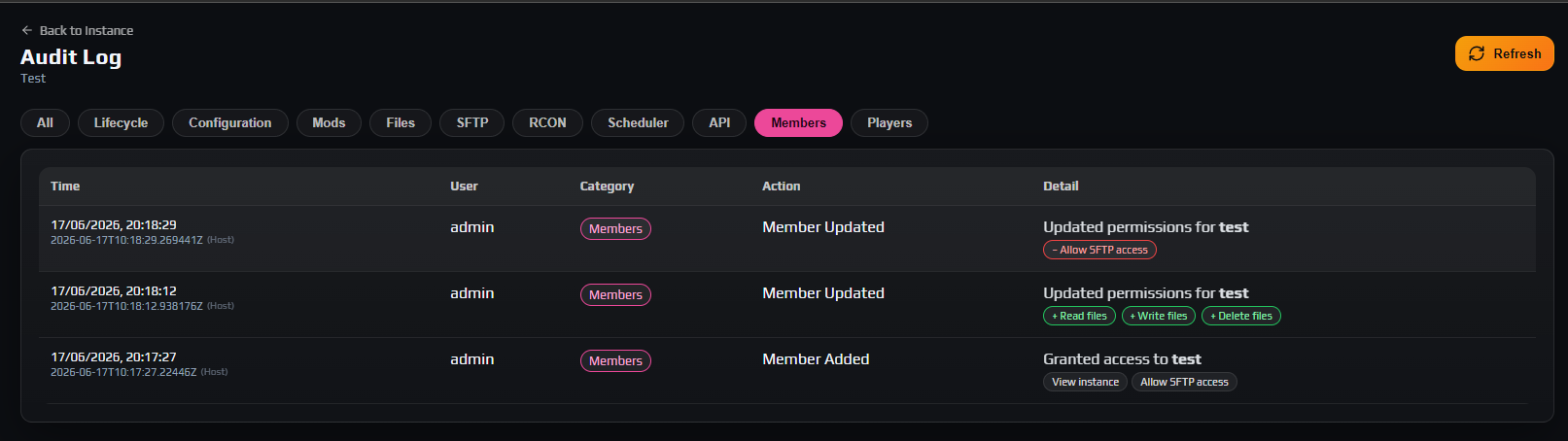
Granting access is only half of delegating safely. Open the Audit Log tab to see what happened. The table has five columns — Time, User, Category, Action and Detail — and each timestamp is shown twice, once in your own timezone and once in the server host’s, labelled (Host). That second value is what you compare against a log line or a player complaint.
The filter pills across the top narrow it to one area: Lifecycle, Configuration, Mods, Files, SFTP, RCON, Scheduler, API, Members and Players. Entries are paged fifty at a time.
Two categories matter most for delegation:
- Members records Member Added, Member Updated and Member Removed. An update is rendered as a before-and-after diff: each permission you granted appears as a green badge with a plus, each one you revoked as a red badge with a minus. If a permission set is not what you expected, this tells you who changed it and when.
- API records API Key Created, API Key Revoked, API Key Linked and API Key Unlinked, each naming the key by its short prefix.
Note: Reading the audit log is itself a permission — View audit log. Granting it to your senior staff is usually right; it lets them check each other’s work without coming to you.
7. Issue API keys for tools, not for people
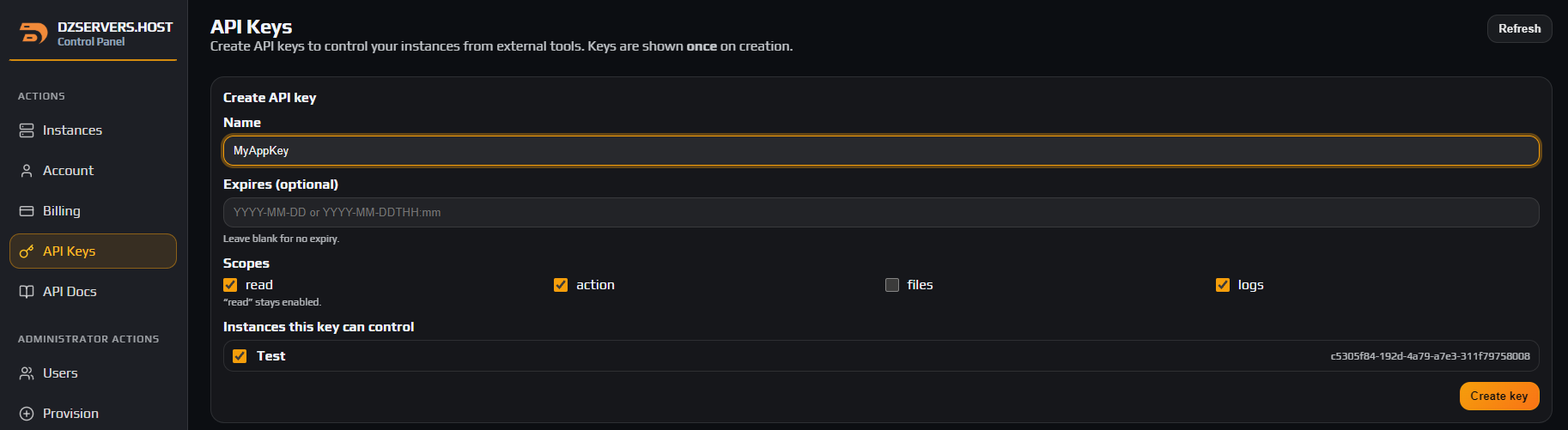
A sub-user is for a human who signs in. An API key is for software. Open API Keys in the sidebar and fill in the Create API key card:
- Name — name it after the tool, not the person. You will be reading this list in a year trying to work out what is safe to revoke.
- Expires (optional) — accepts
YYYY-MM-DDorYYYY-MM-DDTHH:mm. Blank means no expiry. Set one for anything experimental. - Scopes — four checkboxes:
read,action,filesandlogs.readstays enabled and cannot be unticked, because a key that can read nothing is useless. - Instances this key can control — tick only what the tool needs. You can only attach instances you own; a server that was shared with you cannot be attached to your key.
Scopes are coarser than member permissions. This is the exact mapping:
| Scope | Permissions the key gets on a linked instance |
|---|---|
read (always on) | View instance and View audit log |
action | Start / stop / restart, Change mission, Edit settings, Use RCON, and the API-only file download endpoint |
files | Read files, Write files and Delete files |
logs | View logs |
Careful: action is broader than its name suggests: it covers rewriting serverDZ.cfg and issuing RCON commands, not just start and stop. files always includes delete — there is no read-only file scope. If a tool only needs to poll status, leave it on read alone.
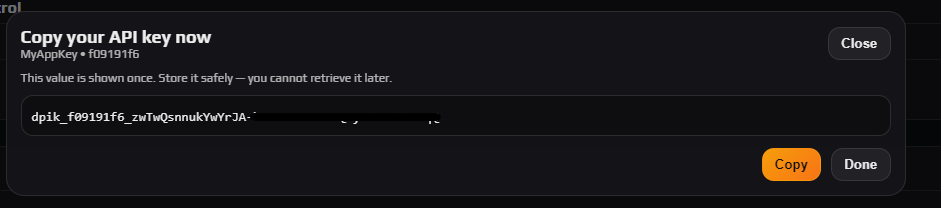
Click Create key. The panel shows the raw key once, in a Copy your API key now dialog that states plainly that the value cannot be retrieved later. Copy it into your secret store before you close it; only a short prefix is kept afterwards, for identifying the key in lists and in the audit log.
Send it as a header on every request. The API Docs page in the sidebar documents every endpoint:
curl -H "X-Api-Key: YOUR_API_KEY" \
  https://dzservers.host/api/instances
The alternative form is Authorization: ApiKey YOUR_API_KEY.
Your key list shows each key’s prefix, scopes, attached instance count and expiry. Edit instances changes which servers a key reaches; Revoke kills it immediately and cannot be undone. You can hold fifty active keys per account.
Data loss risk: An API key bypasses the panel interface completely. There is no confirmation dialog and no "are you sure" behind the API, so a key with files scope can delete your persistence in one request. Never paste one into a Discord channel, a public repository, a pastebin or a support ticket.
8. Apply least privilege and keep it tidy
The habits below are what turn the permission system from a checkbox exercise into actual security.
- Grant the least that works. Start from a recipe above, then add flags when someone hits a wall. Adding a permission takes ten seconds; recovering a wiped persistence file takes a restore and costs everyone their progress.
- One key per tool. Separate keys mean you can revoke the misbehaving bot without breaking your Discord integration and your backup script at the same time.
- Never hand out the admin or RCON password as a shortcut. It is a single 4-10 character engine password shared by everyone who has it, nothing it does is attributable to a person, and rotating it after someone leaves breaks every tool at once. A sub-user with Use RCON gets the same in-game capability, logged under their own name.
- Read the audit log on a schedule. Once a month, filter to Members and API and confirm the list still matches your team.
- Remove people the day they leave. Remove on the Members tab, then revoke any key belonging to a tool they had the credentials for. If they held Use RCON, change the admin and RCON password as well.
Troubleshooting
The panel says that user does not exist when I try to add a sub-user
Why it happens. The Username field is matched against existing panel accounts, and it never creates one. Two things cause the error: the person has no panel account yet, or the name you typed is not their account name. Panel usernames come from the community account, so an email address, a Discord handle or an in-game name will never match.
How to fix it. Ask them to sign in to the control panel once from the community site — that creates or back-fills their panel account. Then confirm their exact community username and try again. If it still fails, open a ticket with the username and we will check it from our side.
My staff member signed in but cannot see the Settings or File Browser tab
Why it happens. The tab bar is built from their effective permissions. A tab they lack is not rendered at all, rather than shown disabled, so it looks to them as though the feature does not exist.
How to fix it. Open Instances → your server → Members, click Edit on their row, tick Edit settings for Settings or Read files for File Browser, then Save. Have them reload the instance page.
A sub-user gets invalid credentials over SFTP even though I ticked Allow SFTP access
Why it happens. Three separate things have to line up. Allow SFTP access permits the connection, Read files is additionally required or the login is refused, and the SFTP password is a per-account secret that the sub-user sets themselves — it is not the panel password and you cannot set it for them.
How to fix it. Grant Read files as well as Allow SFTP access. Then have them open the SFTP tab on that instance, generate their own SFTP password, and use the username shown there, which is their panel username followed by a dot and the first eight characters of the instance id. Full walkthrough in connecting to your server with SFTP.
A server does not appear in the instance list when I create an API key
Why it happens. Keys can only be attached to instances you own. Servers that were shared with you as a sub-user are deliberately excluded, so being granted access to somebody else’s server never lets you mint a key against it.
How to fix it. Ask the owner to create the key and share it with you, or work through the panel with your sub-user permissions instead. If the list is empty entirely, you do not own any instance on this account.
I closed the dialog and lost my API key value
Why it happens. Only a hash and a short prefix are stored. The raw value exists exactly once, in the dialog shown at creation, and there is no route that can return it afterwards — which is the same reason a leaked database cannot be turned into working keys.
How to fix it. Click Revoke on the old key so it cannot be used, then create a replacement with the same name, scopes and instances and update the tool. Revoking is instant.
Frequently asked questions
Can a sub-user add staff of their own?
No. Managing members is restricted to the instance owner and our administrators, and there is no permission flag that grants it — so even a sub-user holding all sixteen permissions cannot add, edit or remove anyone. Delegation only ever flows outward from you.
Can my staff see my billing or my other servers?
No. A sub-user’s Instances list contains only servers they own plus servers explicitly shared with them, and each shared row is badged Shared with the owner’s name. Billing is an external link into their own community account, not yours.
Should I just give my moderators the admin and RCON password instead?
No, and it is the single worst shortcut available. That password is 4 to 10 characters by engine limit, identical for everyone who has it, and nothing done with it is attributable to a person. A sub-user with Use RCON gets the same in-game power, logged under their own name in the Audit Log, and can be removed in one click without breaking anything else. See RCON, bans, whitelist and priority queue.
What can an API key do that a sub-user cannot, and the other way round?
A key is for automation and is limited to what its four scopes map to: status, audit, power, mission, settings, RCON, files and logs. It can never manage mods, backups, the scheduler, players or members, and it cannot use SFTP or change your account. A sub-user reaches the whole sixteen-permission surface through the panel, but only for the instances shared with them.
Does removing a sub-user or revoking a key take effect immediately?
Yes. Permissions are evaluated per request against current data rather than cached into a session, so a removed member loses access on their very next click and a revoked key stops authenticating on its next call. Neither has to wait for a sign-out or a token to expire.
How many API keys can I have, and should I set an expiry?
You can hold fifty active keys per account; revoked and expired ones do not count against that. Set an expiry on anything you are testing or handing to a third-party tool, and leave it blank only for long-lived integrations you actively maintain — an expiring key that quietly stops working is far cheaper than a forgotten key that keeps working.