
VPP Admin Tools (Vanilla++ AdminTools in the DayZ mod list) gives you an in-game admin menu for player management, item spawning, teleporting, ESP, weather and time control, bans and more. Installing it takes three things: add it alongside Community Framework in Workshop Mods, start the server once so it writes its config files, then set an admin password and add your Steam64 ID before restarting again.
That two-restart sequence is not optional and it is where almost everyone gets stuck — the mod cannot read the files it created until the next boot, so the first start always ends with nobody having access. Work through the steps in order and it takes about twenty minutes.
Before you start
- A provisioned server here, stopped. If you are brand new, start with getting started with the control panel.
- Your own Steam64 ID — the 17-digit number beginning
7656. Find it with steamid.io or any Steam ID lookup. - A password you will use to log in to the admin menu in game. It must be 32 characters or fewer.
- Access to the File Browser or SFTP tab, since two config files need editing by hand.
1. Add VPP Admin Tools and Community Framework
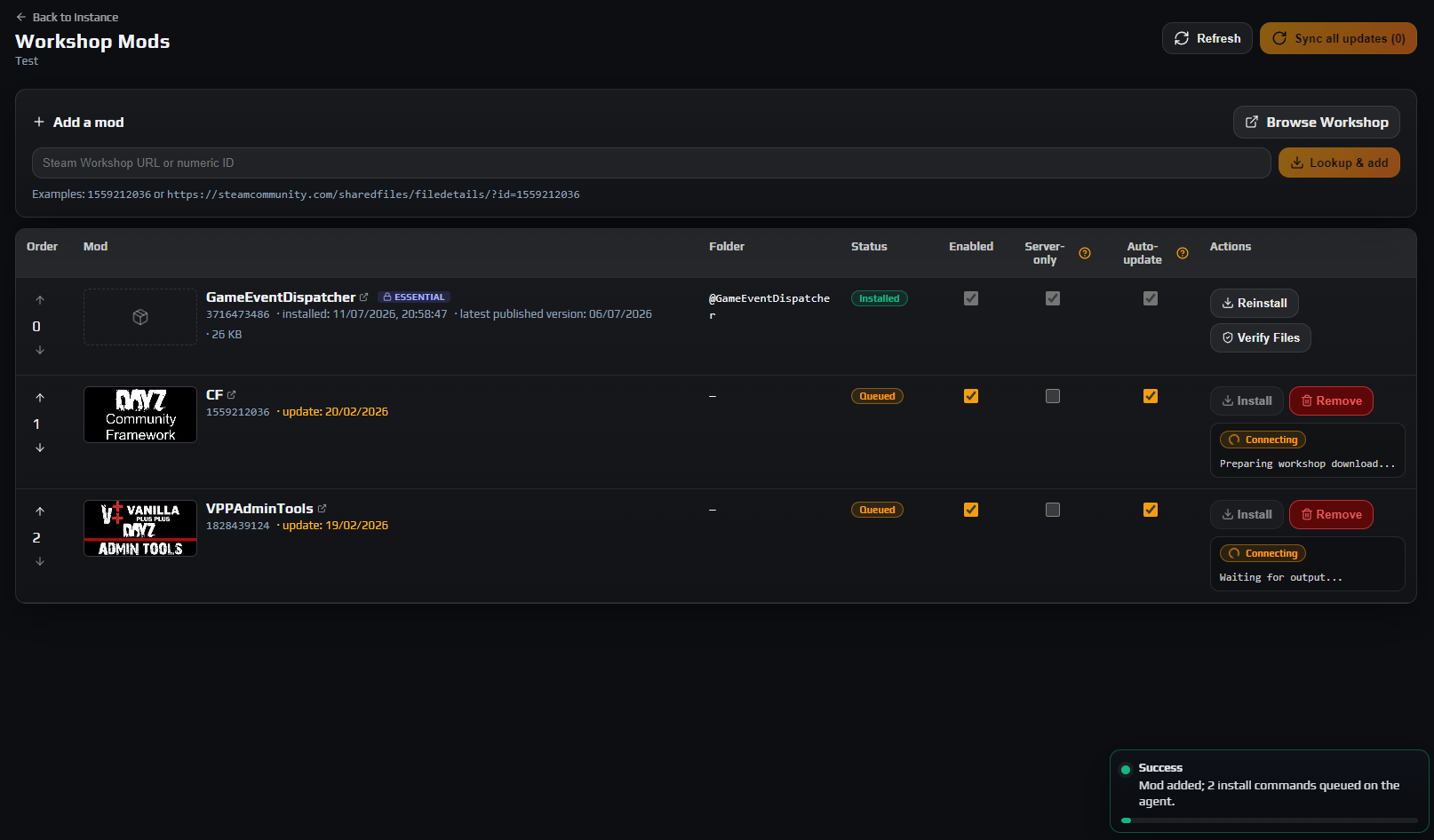
Open your server, go to Workshop Mods, and add both mods. Paste each Workshop URL or ID into the box and click Lookup & add:
- Community Framework — search the Steam Workshop for
Community Framework(often abbreviatedCF). - VPP Admin Tools — Workshop ID
1828439124, or search forVPP Admin Tools.
Careful: Leave Load as server-only mod unchecked for both. VPP Admin Tools is not a server-only mod — it ships the admin menu, the keybinds and the client-side UI, so it has to load on players' clients too. Ticking that box loads it with -servermod=, the server starts normally, and the admin menu then never appears for anyone.
Community Framework must load before VPP Admin Tools. Use the arrows in the Order column so CF sits above it in the list.
Note: VPP Admin Tools depends on Community Framework but does not declare it as a required addon in its config, so a dependency checker will not always flag it for you. Add CF explicitly rather than assuming it will be pulled in — without it the mod fails to compile and the server will not finish starting.
2. Start the server once to generate the config files
Go back to Overview and click Start. This first boot exists purely so the mod can create its folder structure — you will not be able to log in yet, and that is expected.
Watch Live Logs with the Stream dropdown set to rpt. Once the mission has loaded, stop the server again.
Note: If the server never finishes starting and the log shows a compile error mentioning CF_XML_Document or similar unknown types, Community Framework is missing or is loading after VPP Admin Tools. Fix the order in Workshop Mods and try again.
3. Find the generated files
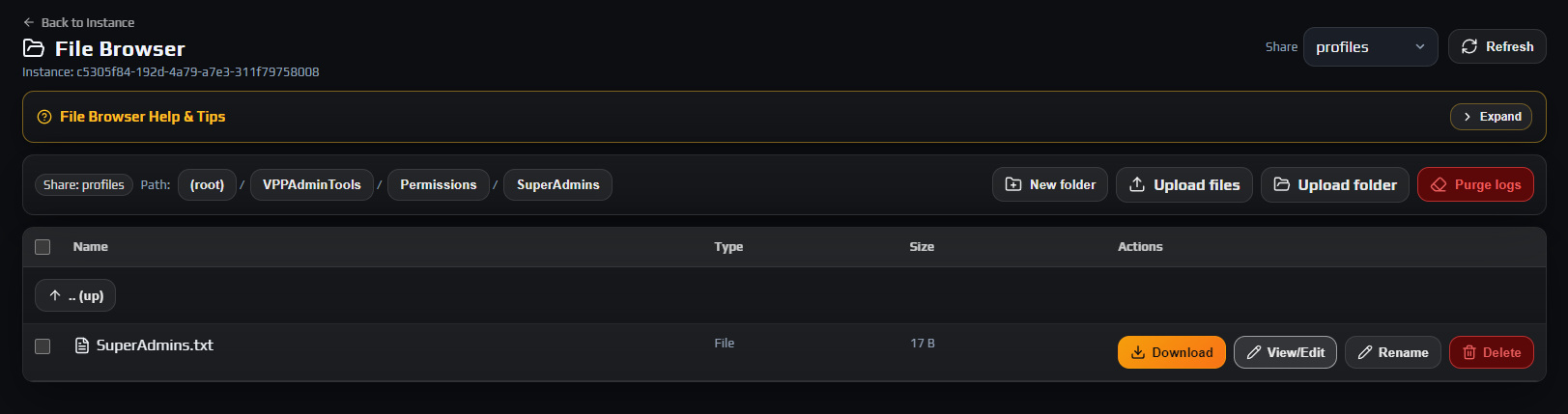
The mod writes everything into your server's profile folder. In the panel that is the profiles share — open File Browser and switch the Share dropdown to profiles, then open VPPAdminTools.
You should see:
| Path | What it is |
|---|---|
Permissions/SuperAdmins/SuperAdmins.txt | Full-access admin list, one Steam64 ID per line. This is where you add yourself. |
Permissions/credentials.txt | The admin password used at login. Set this before the next start. |
Permissions/UserGroups/UserGroups.json | Staff roles and their permissions. Managed in game later; leave it alone for now. |
Logging/ | One log file per server session. |
ConfigurablePlugins/ | Per-feature settings such as webhooks, weather and teleport presets. |
Backups/ | Copies the XML editor takes before it saves a change. |
Note: Prefer a desktop client? These are the same files over SFTP — see connecting with SFTP.
4. Set your admin password
Open Permissions/credentials.txt with View/Edit. It contains only comment lines beginning with //. Delete everything and put your password on the first line, on its own:
MySecretPassword123
Data loss risk: The password must be 1 to 32 characters. On the next start the mod replaces the file contents with a hash and the plain text is gone for good, so save it somewhere safe first. A value of 33 to 63 characters is rejected and leaves the tools unusable; a value of exactly 64 characters is assumed to be an already-hashed password and is stored as-is.
Everyone who logs into the admin menu uses this one password, whether they are a superadmin or in a staff group. If you ever lose it, empty the file, write a new password, and restart.
5. Add yourself as a superadmin
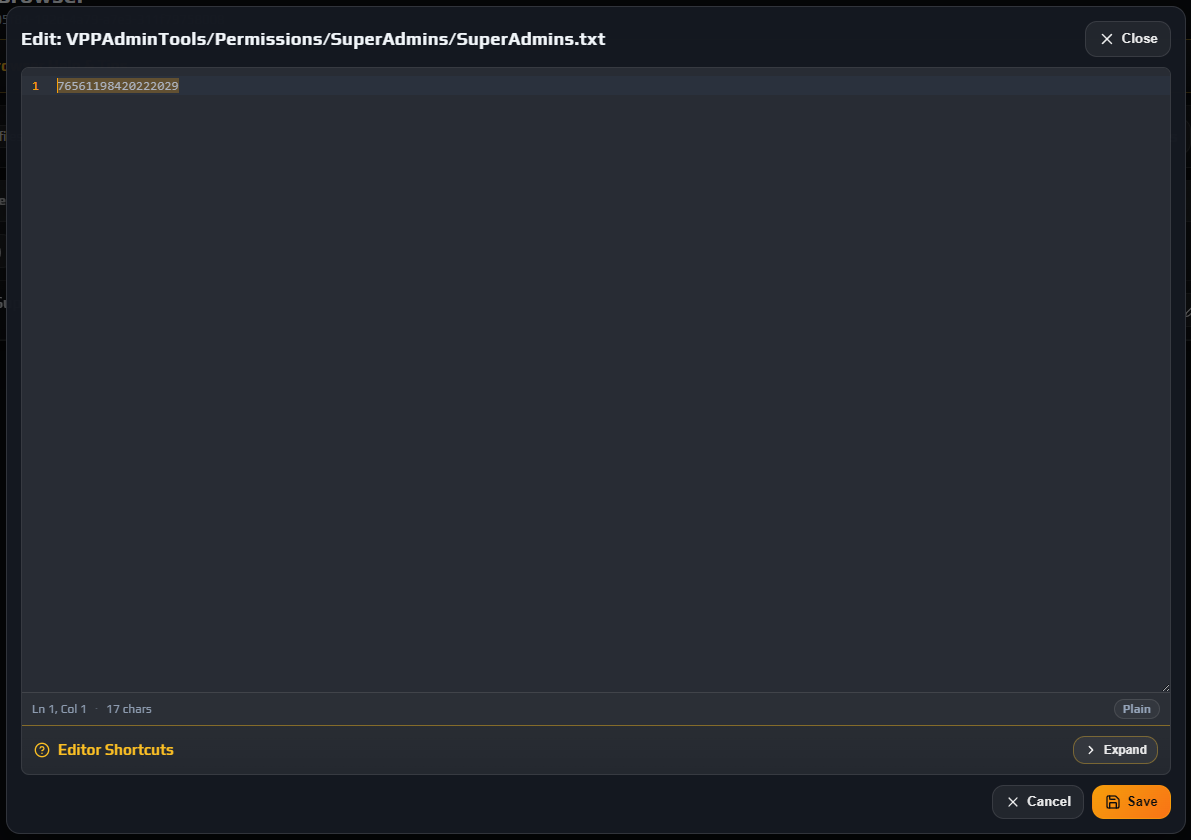
Open Permissions/SuperAdmins/SuperAdmins.txt. It contains a single placeholder sentence. Delete that line and replace it with your Steam64 ID:
76561198000000000
Add more admins one per line, with nothing else on the line:
76561198000000000
76561198000000001
Careful: The file has no comment syntax — every line is read as an ID, including the placeholder sentence and any trailing blank lines. Leave the placeholder in and you get a junk entry in your admin list.
Superadmins bypass every permission check, so keep this list to people you genuinely trust. Staff who need only some tools should get a user group instead, which you set up in game in step 7.
6. Restart and log in
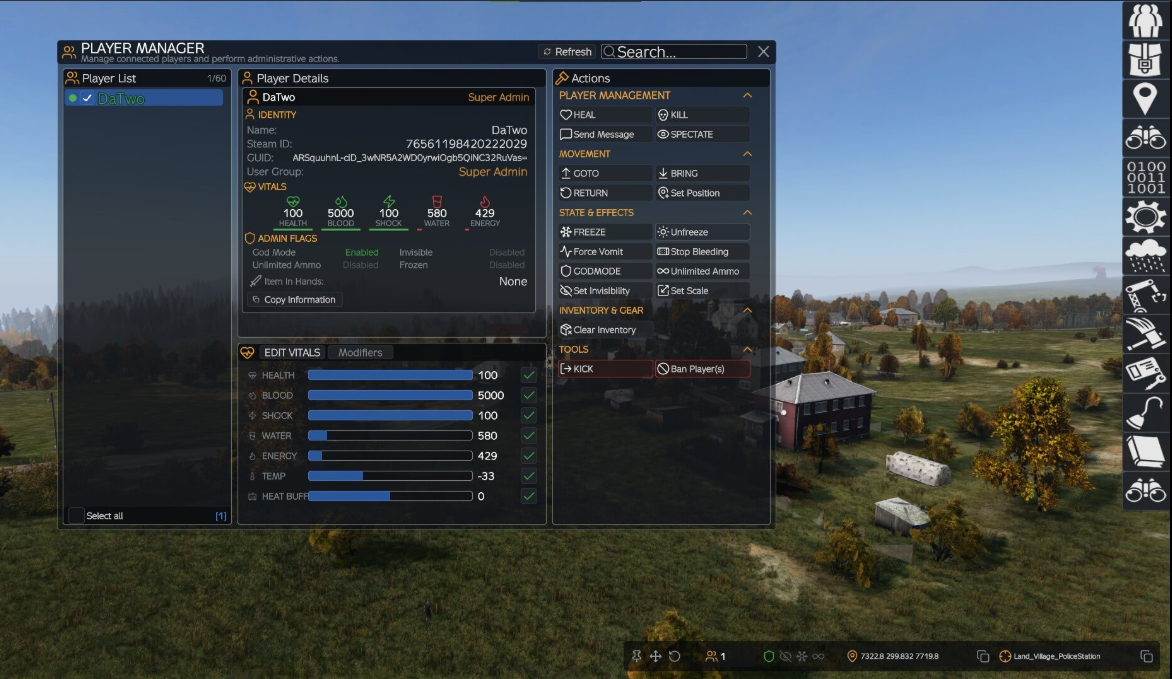
Start the server again. This is the boot where the mod actually reads both files, hashes your password and loads your admin list.
Join your server, then use the two-step login. These are separate keys and the order matters:
- Press End to log in. A password prompt appears — enter the password from
credentials.txt. - Press Home to open the admin menu.
Careful: If End appears to do nothing at all — no prompt, no message, no sound — your Steam64 ID is not being recognised. That silent no-op is by design, and it is the most common problem people hit. See the troubleshooting section below.
Your password is remembered on your own machine after the first successful login, so later sessions only need End then Home.
7. Learn the default keybinds
Beyond the two login keys, these are bound out of the box. All of them can be changed under Options → Controls in the vpp category.
| Key | Action |
|---|---|
End | Log in / toggle admin tools |
Home | Open the admin menu |
Insert | Toggle god mode |
Backspace | Toggle free camera |
H | Teleport to where you are looking |
Delete | Delete the object under your crosshair |
I | Toggle invisibility |
J | Heal the player under your crosshair |
K | Repair the vehicle under your crosshair |
P | Copy your current position to the clipboard |
Y | Toggle mesh ESP |
The menu itself has thirteen sections: Player Manager, Items Spawner, Teleport Tools, ESP Tools, Console, Server Settings, Weather Editor, Object Builder, Bans Manager, Permission Editor, Webhooks, XML Editor and Spectate. You only see the buttons your permissions allow.
There are also chat commands, each with its own permission: /heal, /kill, /strip, /bring, /goto, /return, /tpt, /tpp, /ammo, /spawncar, /refuel, /unban and a few more.
8. Give your staff access without making them superadmins
Open Permission Editor in the admin menu. A default group called Admins already exists at permission level 1. Create groups, set which of the thirteen sections each can use, and add members by Steam64 ID. Changes made here save immediately — no restart needed.
Careful: Permission levels are inverted from what most people expect: a lower number means more authority. A level 1 admin can act on a level 5 admin, never the other way round, and two admins on the same level cannot act on each other — only on themselves.
Two things that surprise people:
- You will not find yourself in the Permission Editor. Superadmins live in
SuperAdmins.txt, not in the group system, and cannot be added to a group. - If a group has the forced name option enabled, members are locked out whenever their in-game name stops matching the name stored on their entry. Update the entry after anyone renames.
Everyone still logs in with the same password from credentials.txt; the group only decides what they can do once they are in.
Troubleshooting
Pressing End does nothing at all in game
Why it happens. The mod only enables the login prompt for accounts it already recognises. If your Steam64 ID is not in SuperAdmins.txt and you are not a member of a user group, the key is deliberately ignored with no message of any kind.
How to fix it. Stop the server and re-open profiles/VPPAdminTools/Permissions/SuperAdmins/SuperAdmins.txt. Check the ID is your Steam64 (17 digits starting 7656), that it is alone on its line, and that the placeholder sentence is gone. Start the server again — this file is read only at startup, so edits do nothing until a restart.
The password prompt appears but the menu never opens
Why it happens. End and Home are two different keys doing two different jobs. End logs you in; Home opens the menu. Pressing Home before logging in does nothing.
How to fix it. Press End first and complete the password prompt, then press Home. If Home still does nothing, check it is not bound to something else under Options → Controls in the vpp category.
The server will not start after adding the mod
Why it happens. Almost always Community Framework: it is missing, or it is loading after VPP Admin Tools. VPPAT uses CF's XML functions, and Enforce Script cannot compile against types that are not loaded yet.
How to fix it. In Workshop Mods, confirm Community Framework is installed and enabled, and use the Order arrows to place it above VPP Admin Tools. Then check Live Logs on the rpt stream for the compile error to confirm it is gone.
Locked out after too many wrong passwords
Why it happens. Failed logins are counted per Steam64 ID and capped at six.
How to fix it. Both your game and the server need restarting to clear the counter. If you have also forgotten the password, delete everything in credentials.txt, write a new one on the first line, and restart — it is re-hashed on the next boot.
Players are kicked for an unsigned mod after installing it
Why it happens. Your server has signature verification enabled and the mod's key is not in the server's keys folder.
How to fix it. Open File Browser, switch Share to config and check the keys folder contains the mod's .bikey. If it is missing, copy it from the mod's own Keys folder in the mods share. Every mod your players load needs its key present.
Frequently asked questions
Do my players need to install VPP Admin Tools too?
Yes. It is not a server-only mod — the admin menu, the keybinds and all of the UI are client-side, so everyone connecting needs it. That is why Load as server-only mod must stay unchecked. Publish your mod list, including Community Framework, wherever you advertise the server.
Why do I have to restart twice?
The mod creates credentials.txt and SuperAdmins.txt during startup and does not read them again in the same session. So the first boot only writes the placeholder files, and your password and admin list are not picked up until the boot after you edit them.
Where exactly are the config files?
In your server's profile folder, which is the profiles share in the panel — reachable from both the File Browser and SFTP. Everything lives under profiles/VPPAdminTools/. It is not in the mission folder or next to the server executable.
Do its bans replace the panel Players page?
No, they are separate systems. Bans made in the mod's Bans Manager are stored in its own BanList.json and enforced by the mod when someone connects. The panel's Players page writes ban.txt and BattlEye's ban list instead. Both work; just remember a ban made in one will not show up in the other.
Can I turn off the admin password?
There is a serverDZ.cfg option that skips the in-game password so recognised admins get their tools automatically on connect. It also removes a verification step from the mod's internal permission checks, leaving Steam64 membership as the only thing standing between someone and full admin access. Leave the password on unless you have a specific reason not to.
Does it need RCON set up?
No. VPP Admin Tools works entirely in game and does not use BattlEye RCON. Your RCON password is still worth having for the panel's own RCON terminal and the Controlled Restart feature, which are separate from this mod.
Related guides
Edited by DaOne