
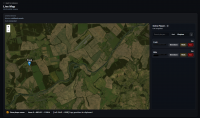
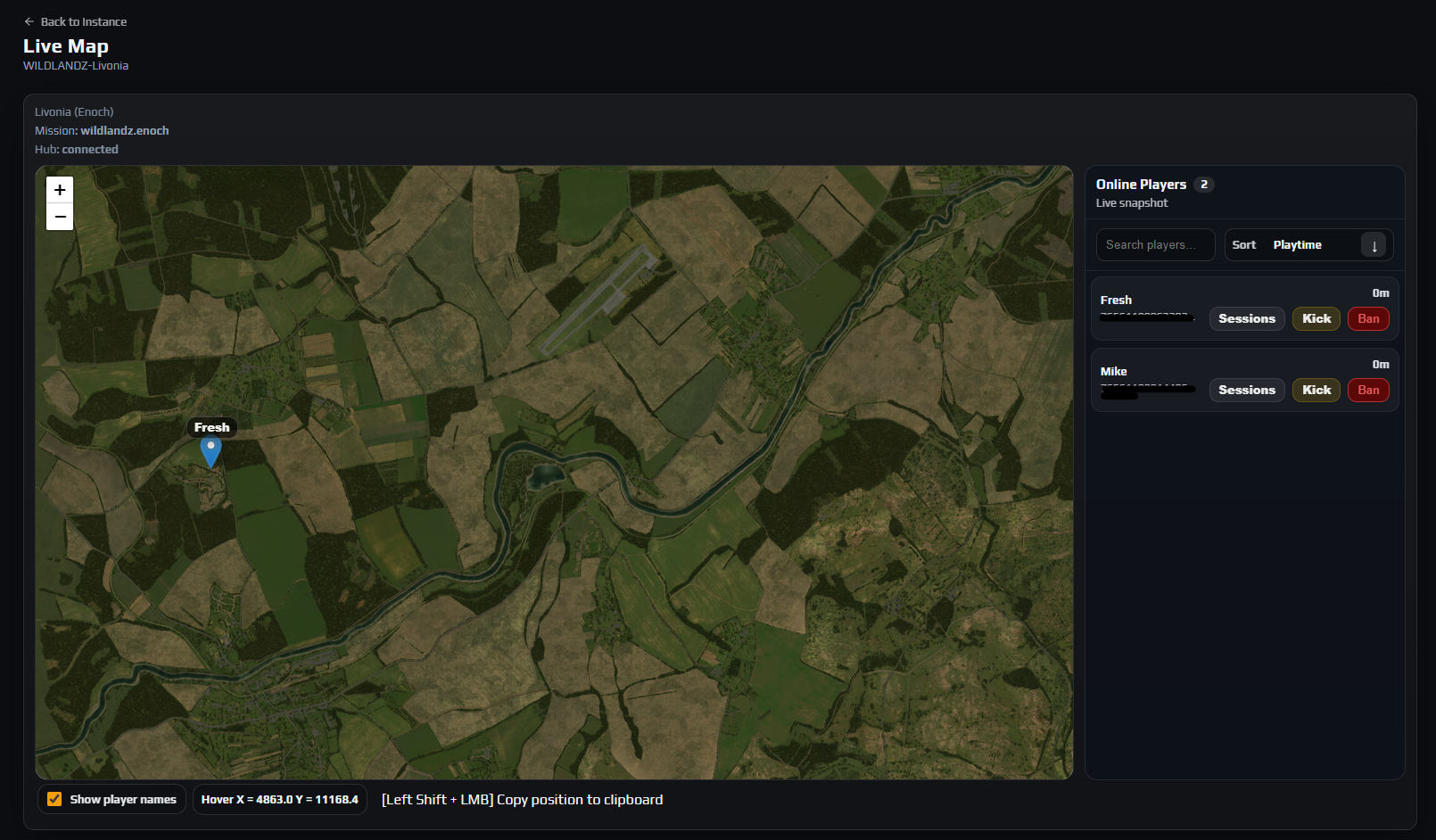
The Live Map tab plots every player currently on your DayZ server onto the real terrain of the world you are running, and refreshes roughly every two seconds. Open it from Instances → your instance → Live Map. Nothing needs installing: the positions come from a first-party server mod that ships on every instance, not from scraping log files, so the map works on a stock server from the first boot.
Alongside the map sits an Online Players panel with a live count, a search box, sorting, and per-player Sessions, Kick and Ban buttons. Hovering the map reads out game coordinates, and Left Shift plus left-click copies the position under your cursor to the clipboard.
Before you start
- A running server with someone on it. Positions only exist while the server is up and a player is connected — there is no historical playback.
- Nothing to install. The GameEventDispatcher mod that publishes player positions and Server FPS is a forced prerequisite on every instance. You will find it in Workshop Mods marked ESSENTIAL with a padlock, and it cannot be removed, reordered or toggled off.
- Instance access. The realtime feed checks the View instance permission, so any staff member who can open the instance can watch the map. The action buttons need more: Use RCON to kick, Manage bans & lists to ban and View players to open Sessions.
- A mission whose world is one of the supported ones, otherwise you get Chernarus+ tiles under your players. The full list is in step 3.
1. Open the Live Map and read the status header
Click Live Map in the instance tab bar. The page title reads Live Map with your instance name underneath, and Back to Instance returns you to Overview.
Above the map itself are three short lines that tell you whether to trust what you are looking at:
- The map name the panel has chosen —
Chernarus+,Livonia (Enoch),Sakhaland so on. This is derived from your mission, not picked by you. - Mission — the mission folder name the instance is actually running, or
(none)if the panel has not read one yet. - Hub —
connected,connectingordisconnected, with the error in brackets if there is one.
Note: Hub describes your browser’s realtime link to the panel, not the state of your game server. connected with an empty map means the panel is listening fine and your server simply has not sent a player snapshot yet.
2. Understand where the positions come from
Your server runs a mod called GameEventDispatcher, installed on every instance as a forced prerequisite. Roughly every two seconds it posts a full snapshot of everyone online — name, Steam64 id and position — which the panel relays to your browser over a realtime connection. The same mod supplies the Server FPS figure on Overview.
- It is a snapshot, not a trail. Each update replaces the last, so markers step to their new position instead of drawing a path. Following someone means watching for a while.
- It is best-effort. On a busy server the snapshot is split into chunks before it leaves the game, and an incomplete batch is dropped rather than shown half-finished. An occasional skipped cycle is normal.
A small line under the Online Players heading tells you which state you are in: Waiting for players_update… until the first snapshot arrives, then Live snapshot from then on. If it never changes, either nobody is online or the server is not running.
3. Check you are looking at the right world
You do not choose the map. The panel takes your mission folder name, keeps everything after the last full stop, lowercases it, and looks for matching tiles — so dayzOffline.chernarusplus resolves to Chernarus+ and a custom mission such as hardcore.namalsk resolves to Namalsk. These worlds have tiles:
| Map shown | Your mission name must end in |
|---|---|
Chernarus+ | chernarusplus |
Livonia (Enoch) | enoch |
Sakhal | sakhal |
Namalsk | namalsk |
DeerIsle | deerisle |
Green County | greencounty |
Pripyat | pripyat |
Antoria | antoria |
Iztek | iztek |
Deadfall | deadfall |
BanovFrost | banovfrost |
Careful: An unrecognised world falls back to Chernarus+ tiles. The markers are still your real players at their real coordinates, but they are drawn over the wrong terrain, so anything you conclude from the scenery will be wrong. Compare the map name in the header against the Mission line before you act on what you see.
The view is clamped to the world bounds, so you cannot pan off into empty space. After a mission change, reload the page — the map rebuilds itself around the new world.
4. Work the Online Players panel
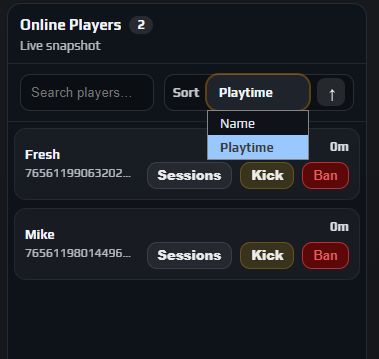
To the right of the map, Online Players carries a count badge and one row per connected player. The count reflects what is currently listed, so it drops as you type in the search box rather than always showing the server total.
- Search players… filters on both the player name and the Steam64 id, so you can paste an id straight from a report.
- Sort offers Name or Playtime, and the arrow button beside it flips between ascending and descending.
- Each row shows the player name with their Steam64 id underneath, then a playtime figure, then the three action buttons.
- Clicking anywhere on a row that is not a button flies the map to that player. This is the fastest way to find one person in a crowd.
An empty panel reads No players to show. — which also appears when your search matches nobody, so clear the box before concluding the server is empty.
Note: The playtime figure on this panel comes from the live position feed, which carries only names, ids and coordinates. For real session history — total playtime, session counts, first and last seen — use the Players tab, which is fed by a separate harvester.
5. Read names, markers and coordinates
Below the map are the display controls.
- Show player names is ticked by default and floats each player’s name above their marker. Untick it when a firefight has six people stacked in one building and the labels overlap into mush.
- The Hover readout shows the game coordinates under your cursor as
Hover X = 7481.3 Y = 8320.6, orHover: —before you have moved over the map. [Left Shift + LMB] Copy position to clipboarddoes exactly that.
Clicking a marker opens a popup with the player’s name, their position as a DayZ vector in x, height, z order, and their Steam64 id underneath — which is what you copy into a ban list, a whitelist entry or a support ticket.
The shift-click copy writes a three-part position with the height component set to a literal zero:
7481.3,0,8320.6
That is the shape most spawner and event tools expect. Substitute a real height if the tool you are feeding needs one.
Careful: Shift-click gives you no toast and no flash — the copy is silent by design. Paste it somewhere before assuming it failed. Treat the coordinates as close-enough for placing events and spawns, not survey-grade: they are derived from the tile calibration and clamped to the world bounds.

6. Act on a player: Sessions, Kick and Ban
Each row carries three buttons, and they behave quite differently from one another.
| Button | What it actually does |
|---|---|
| Sessions | Opens the Players tab in a new browser tab with that player’s Steam64 already searched in the All Players list. From there View Sessions gives you their connection history. Needs the View players permission. |
| Kick | Takes you to the RCON tab with that player’s name pre-filled in the Players Online filter. The RCON session connects on arrival; press Kick on their row, add a reason, and confirm in the Kick Player dialog. Nothing is sent from the map itself. |
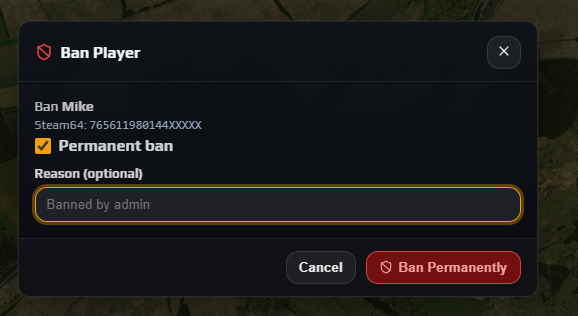
| Ban | Opens the Ban Player dialog straight away, pre-filled with the player’s name and Steam64. Set the duration and a reason, then confirm. The ban is written through the panel and synced to the server, and BattlEye kicks them automatically. |
Careful: The Ban Player dialog opens with Permanent ban already ticked and its confirm button reading Ban Permanently. If you meant a cooldown, untick it first and set Duration (hours) or an End Date before you confirm.
One limitation of banning from the map: the live feed carries only a Steam64, so the dialog has no Also ban IP address option here. To ban the IP as well, ban from Players → All Players instead, where the panel knows the player’s full identity and can offer Latest IP or All known IPs. Both routes are covered in RCON bans, whitelist and priority queue.
Data loss risk: A permanent ban is easy to issue from a map row and awkward to unwind once a player has moved on. Check that the Steam64 in the marker popup matches the one in your report, and put a real reason in the Reason field — in three months it will be the only record of why you did it.
7. Use it for real admin work
The map earns its place once you stop watching it and start using it to answer specific questions.
- Testing a cheat report. Search the accused player, click their row to lock the view onto them, and watch for a minute. Teleporting reads as a marker jumping kilometres between two-second updates; someone crossing open ground at a plausible pace does not. The difference is obvious at a glance.
- Checking whether a raid is happening. A base owner opens a ticket claiming they are being raided while offline. Look at the base coordinates: three markers clustered on them tells you one thing, an empty map another. Note the Steam64 ids of anyone parked there before they log out.
- Verifying someone is where they claim. Before acting on any report, confirm the position. It costs ten seconds and it is the cheapest way to avoid banning the wrong person.
- Finding where your players actually go. Glance at the map at peak hours across a few evenings. Persistent clusters show which towns are carrying your loot economy and which half of the map nobody visits — useful input before you touch types.xml and the loot economy.
- Picking coordinates for events and spawns. Hover the spot you want, shift-click, paste. Placing a trader, an airdrop or a custom event this way beats guessing numbers out of a wiki, because you can see the terrain you are putting it on.
Note: The map shows position only — no vehicle, base, loot or zombie overlay, and nothing a player has built. To know what is at a set of coordinates, take them from the map and go look in game.
Troubleshooting
The Live Map is empty and stuck on "Waiting for players_update"
Why it happens. The panel’s realtime connection is up but no player snapshot has arrived. Usually the server is stopped, nobody is connected, or it is still finishing its boot and the mod has not started reporting.
How to fix it. Check Overview shows Running with a player count above zero, then give it a few seconds. If the server is running with players on it and the message never changes, open a ticket and name the instance.
My server is Livonia but the Live Map shows Chernarus
Why it happens. The map is chosen from the part of your mission folder name after the last full stop. If that word is not one of the worlds we hold tiles for — a renamed folder, a typo, or a community map we do not ship yet — the panel falls back to Chernarus+.
How to fix it. Compare the last segment of the Mission line against the supported list in step 3. Rename the mission folder so it ends in the correct world name, restart, and reload the page. For a community map we do not carry, open a ticket and ask for the tiles.
Every player on the Live Map shows 0m playtime
Why it happens. The playtime figure here comes from the live position feed, and that feed carries only names, ids and coordinates. There is no session history behind the map.
How to fix it. Use Sessions on the row, or go to Players → All Players directly. That list has real Playtime, Sessions, First seen and Last seen values from the panel’s own session tracker, and sorts by playtime properly.
Shift and left-click does not copy the coordinates
Why it happens. The copy is deliberately silent — no toast, no highlight — so success looks identical to failure. A genuine failure usually means the browser blocked clipboard access.
How to fix it. Paste into any text field to check before troubleshooting further. If nothing pastes, allow clipboard access for the panel in your browser’s site permissions, or read the numbers off the Hover line and type them in.
The header says Hub: disconnected and the markers have frozen
Why it happens. The realtime connection dropped — a network blip, a sleeping laptop, or a panel session that expired while the tab sat open. The last snapshot stays on screen, which is why frozen markers can pass for live ones.
How to fix it. It reconnects on its own and the header returns to connected; if not, reload. Being bounced to the sign-in screen means your session expired. If it reconnects but stays empty, confirm you still hold View instance on that instance.
Frequently asked questions
Do I need to install a mod to use the Live Map?
No. The GameEventDispatcher mod that publishes player positions is installed on every instance as a forced prerequisite, so the Live Map works on a brand new vanilla server with nothing added. You will see it listed in Workshop Mods marked ESSENTIAL with a padlock, and it cannot be removed, reordered or switched off.
How often do player positions update?
About every two seconds. Each update is a complete snapshot of everyone online that replaces the previous one, so markers step to their new position rather than animating along a path. On a busy server an occasional cycle is dropped rather than shown incomplete, and the next follows two seconds later.
Which DayZ maps does the Live Map support?
Chernarus+, Livonia (Enoch), Sakhal, Namalsk, DeerIsle, Green County, Pripyat, Antoria, Iztek, Deadfall and BanovFrost. The panel matches on the part of your mission folder name after the last full stop, and anything it does not recognise is drawn over Chernarus+ tiles instead. If you run a community map that is not on the list, open a ticket and ask us to add the tiles.
Does clicking Kick on the map kick the player straight away?
No. Kick hands you over to the RCON tab with that player already filtered in the Players Online list, because kicking is a live RCON action. You still press Kick on their row and confirm in the Kick Player dialog. Ban is the button that acts from the map itself.
Can I see where a player was yesterday?
No — the Live Map is live only and keeps no position history. Session activity is recorded: the Players tab holds each player’s sessions, playtime, first and last seen, and known connection details. For where they were rather than when they were on, your server’s admin logs in profiles are the record.
Can my players see the Live Map?
No — only people with panel access to that instance, and the feed checks the View instance permission before sending anything. That makes it a permissions decision: any staff member you grant instance access to can watch every player’s live position, whether or not you gave them RCON or ban rights. See staff permissions and API keys.