

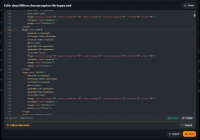
Everything that decides what spawns on your DayZ server lives in the mission’s XML files, and you edit them from the File Browser tab: set the Share dropdown to mpmissions, open your mission folder, then db, and click View/Edit on types.xml. The editor checks your XML as you type and refuses to save a file with a syntax error, which is the main thing standing between a small loot tweak and a server that boots with no loot at all.
This guide takes the safe route: keep a copy, understand what each attribute actually does, save clean, then restart to apply. Budget twenty minutes for your first edit.
Before you start
- An instance you can restart. The central economy is read once when the mission loads, so nothing you save takes effect until then.
- Read files and Write files permission on the instance. Owners have both; sub-users need them granted under Members.
- Somewhere to keep a copy of the file before you change it — your own disk is fine.
- A rough idea of which item you are changing. Class names in
types.xmlare exact and case-sensitive.
1. Keep a copy before you change anything
The editor writes straight over the file. There is no version history, no diff, and the moment you click Save the modal closes and the editor’s Ctrl + Z history goes with it.
Data loss risk: Once you save, the previous types.xml is gone. If your edit turns out to be wrong, the only ways back are a copy you kept yourself or a backup restore, and a restore needs the server stopped.
Pick whichever of these fits the size of the job:
- One file. Click Download on the
types.xmlrow before you open it. That gives you the exact bytes you started from, and you can paste them back into the editor if you need to. - The whole mission. Pull
mpmissionsdown over SFTP — see taking your own backup over SFTP. This is what you want if you are about to work through several economy files. - Rely on the automatic backups. Mission XML is captured in the XMLs & JSONs & other(s) category and kept for 30 days. It works, but a restore rolls the whole category back and the server has to be stopped for it — see automatic backups and restore.
A downloaded copy costs you one click. Take it.
2. Open the File Browser on the mpmissions share
Go to Instances → your server → File Browser. The page opens on the profiles share, which is not where you want to be.
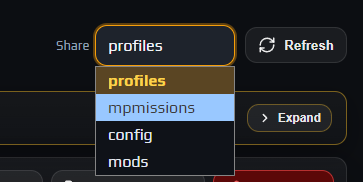
Use the Share dropdown at the top right and choose mpmissions. The badge under it changes to Share: mpmissions and the breadcrumb resets to (root). Switching shares always returns you to that share’s root, so you never end up looking at a path that belongs to a different share.
Four shares are exposed, and each one holds something different:
| Share | What lives there |
|---|---|
profiles | Server logs and the profile directory — .RPT, .ADM, crash and script logs. |
mpmissions | Your mission folders. Economy XML, spawn configs and persistence all live under here. |
config | serverDZ.cfg, the BattlEye keys folder, whitelist.txt, ban.txt and priority.txt. |
mods | The installed Workshop mod folders. You can edit files inside a mod, but the folders themselves are owned by Workshop Mods. |
Note: Some entries are protected: the panel will not delete or rename serverDZ.cfg, the keys folder, whitelist.txt, ban.txt, priority.txt or a top-level mod folder. You get This file and or directory cannot be deleted or renamed instead. Editing their contents is still allowed — it is only the file itself that is pinned in place.
Worth expanding once: the File Browser Help & Tips card at the top of the page lists every action the browser supports, including drag-to-move and folder uploads.
3. Find the right mission folder, then open db
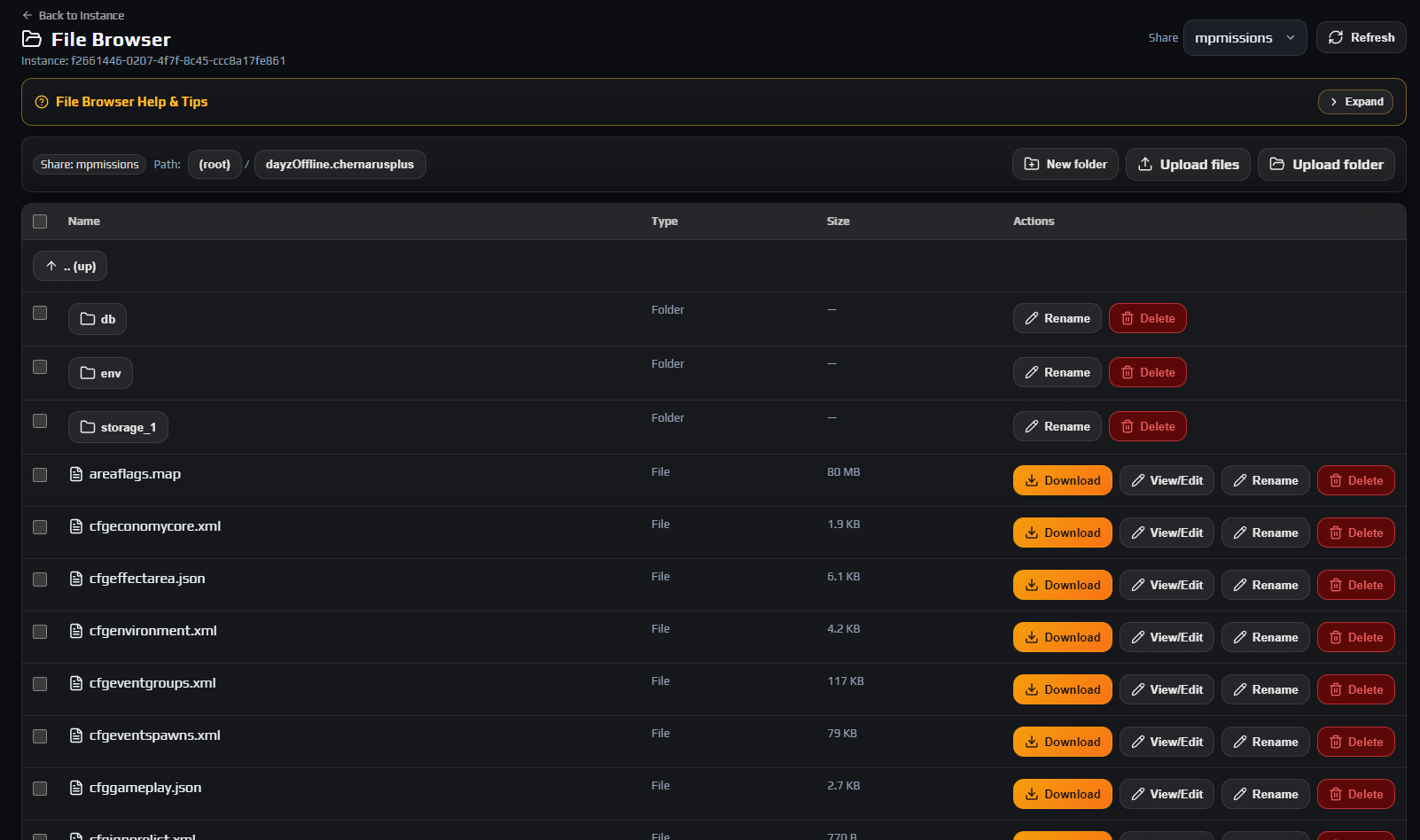
The mpmissions root holds one folder per mission, and a stock instance usually ships with more than one. Only the folder named on the Overview tab’s Mission pill is actually loaded — typically dayzOffline.chernarusplus.
Careful: Editing the economy inside a mission your server is not loading produces no error and no effect. It is the most common wasted hour in DayZ server admin. Check the Mission pill on Overview first, then open that exact folder.
Click into the mission folder. What you are looking at:
| Path | What it controls |
|---|---|
db/types.xml | Every item’s spawn rules: how many, how long they last, where they are allowed. |
db/events.xml | Dynamic events — vehicles, helicopter crashes, animals, infected hordes. |
db/globals.xml | Economy-wide variables such as cleanup and idle timers. |
db/economy.xml | Which economy subsystems the mission initialises and persists. |
db/messages.xml | Scheduled in-game broadcasts and the shutdown countdown. |
cfgeconomycore.xml | Sits at the mission root. Registers extra economy files, which is how most mods add their own types. |
storage_1/ | Persistence. Your players and their bases. Never hand-edit anything in here. |
Data loss risk: storage_* folders are live save data, including players.db. Opening one in a text editor and saving it will corrupt characters. If you need to roll persistence back, use a backup restore, not the editor.
Open db. The economy files are all there, all small, and all editable in the panel.
4. Open types.xml in the editor
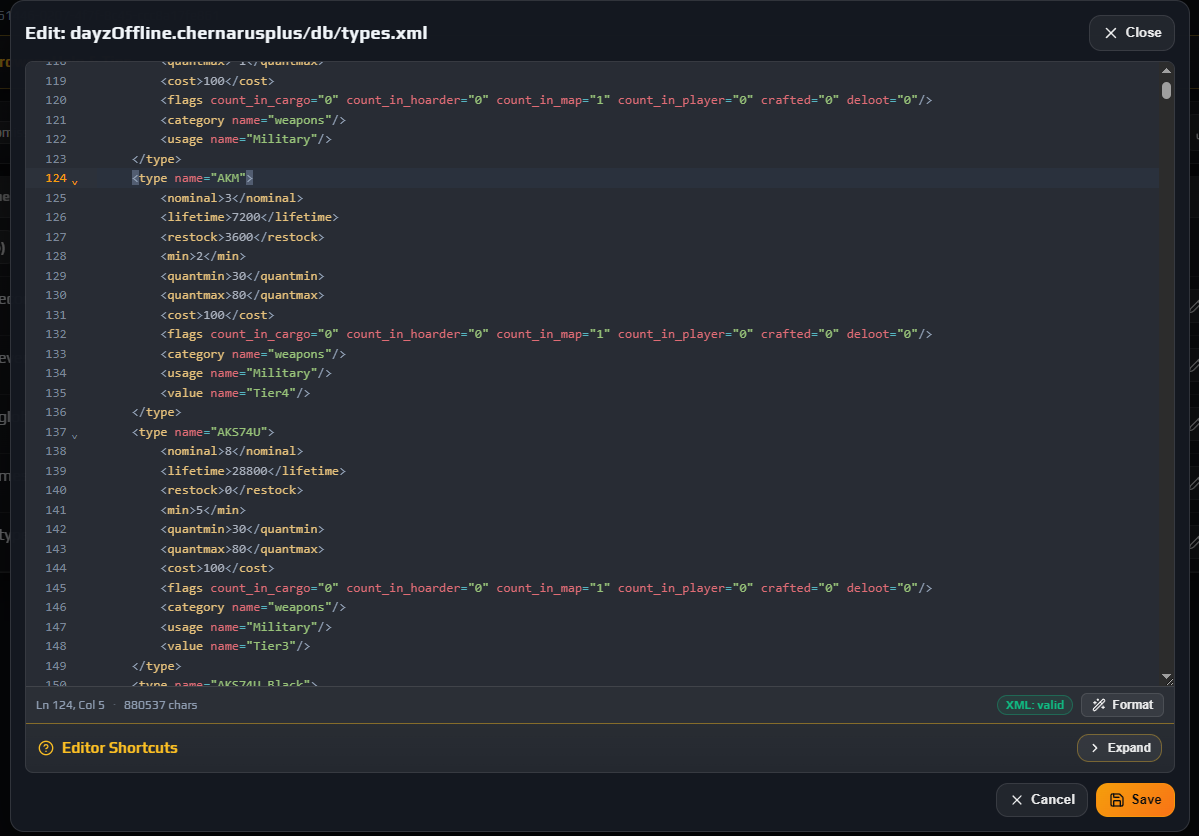
Find the types.xml row and click View/Edit. A modal opens, titled Edit: followed by the file’s path inside the share, with a real code editor in it: line numbers, code folding, syntax colouring and a lint gutter down the left.
Two things about the editor that save time:
types.xmlis long — several thousand lines on a vanilla mission. Do not scroll. PressCtrl + F, type the class name, and pressEnterto jump straight to it.- The Editor Shortcuts card sits under the editor, collapsed. Click Expand once and you have the full keymap:
Ctrl + Hfor find and replace,Ctrl + Alt + Gto jump to a line number,Alt + UpandAlt + Downto move a line,Ctrl + Zto undo.
The status bar under the editor shows Ln 1, Col 1 and a character count, then the validation pill on the right. When the file parses, the pill reads XML: valid in green. A JSON file such as cfggameplay.json gets exactly the same treatment and reads JSON: valid.
Note: Only text formats the panel recognises can be saved: .cfg, .txt, .xml, .json, .rpt and .log. Anything else has to be replaced by uploading a new copy. Files of about 50 MB and up will not open in the editor at all — that limit exists to keep a giant .RPT from being pulled through your browser.
5. Read the entry before you change it
Each item is one <type> block. Here is a rifle entry, and every number in it is doing a specific job:
<type name="AKM">
    <nominal>15</nominal>
    <lifetime>7200</lifetime>
    <restock>0</restock>
    <min>10</min>
    <quantmin>-1</quantmin>
    <quantmax>-1</quantmax>
    <cost>100</cost>
    <flags count_in_cargo="0" count_in_hoarder="0" count_in_map="1" count_in_player="0" crafted="0" deloot="0"/>
    <category name="weapons"/>
    <usage name="Military"/>
</type>
| Attribute | What it does |
|---|---|
nominal | How many the economy tries to keep in the world at once. A target, not a promise — it is also capped by how many eligible spawn points exist. |
min | The floor. When the counted number falls to this, the economy starts producing more, aiming back at nominal. Keep it at or below nominal. |
lifetime | Seconds an untouched item survives before it is cleaned up. 7200 is two hours. The clock resets when a player handles it. |
restock | Seconds the economy waits before topping this type back up. 0 means as soon as it can. |
quantmin / quantmax | For items that hold a quantity — magazines, drinks, food, fuel — the percentage range they spawn filled to. -1 means the item has no quantity. |
cost | Relative priority when several eligible types compete for one slot. Almost every vanilla entry uses 100; lower it to make a type rarer without touching nominal. |
category | The loot class — weapons, clothes, food, tools, containers, explosives, vehiclesparts. |
usage | Which areas may spawn it: Military, Police, Town, Village, Farm, Industrial, Hunting, Medical and so on. Repeat the line to allow several. |
The flags block is the part people miss. Each count_in_* flag decides whether copies in that place count towards nominal. In the entry above only count_in_map is set, so the economy counts AKMs lying in the world — and ignores every AKM in a player’s hands, backpack, tent or stash. That is why a heavily looted server keeps producing rifles: the hoarded ones are invisible to the count.
count_in_cargo— count copies inside containers and bags on the ground.count_in_hoarder— count copies stashed in tents, barrels and other hoarder storage.count_in_map— count copies lying loose in the world. Set on virtually everything.count_in_player— count copies in players’ inventories.crafted— the item only exists through crafting, so the economy never spawns it.deloot— the item comes from dynamic events only, not from ordinary loot points.
Turning count_in_hoarder and count_in_player on for high-value gear is the standard way to stop a server drowning in hoarded rifles. It is also the change most likely to surprise you, so make it on one or two types first and watch what happens over a couple of days.
Careful: Never change the name attribute to something the game does not know. Class names are exact and case-sensitive, and a modded class only resolves while that mod is installed. An unknown class is logged and skipped, so the item you were expecting simply never appears.
6. Let the validator clear you before you save
As you type, the editor parses the file. Two things react:
- The lint gutter on the left marks the line the parser choked on, and the offending text is underlined in the body.
- The status pill flips from
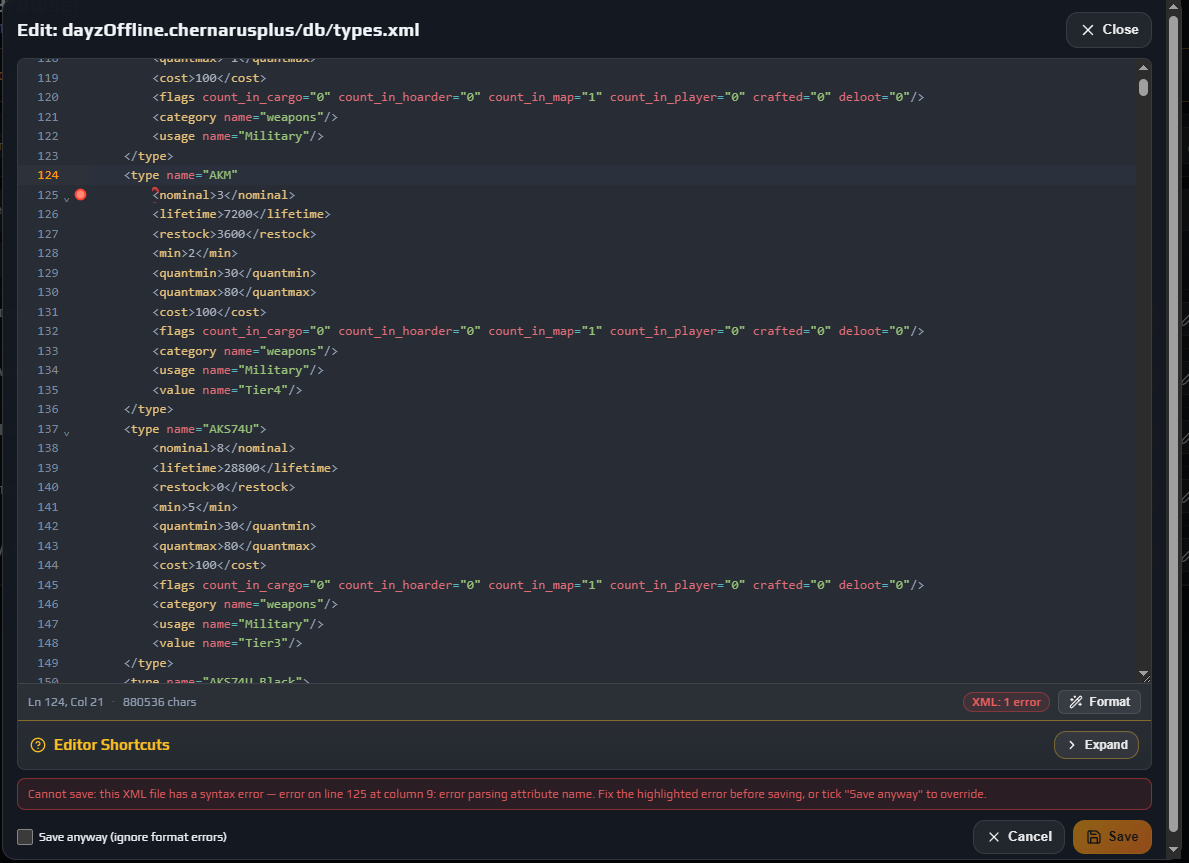
XML: validtoXML: 1 error, and a red bar appears above the buttons naming the problem, for exampleCannot save: this XML file has a syntax errorfollowed by the parser’s own message. XML parsers stop at the first fault they hit, so fix that one and the next hidden one appears.
While the pill is red, Save is disabled. That is deliberate.
Format at the bottom right re-indents the whole file at two spaces per level, which makes an unbalanced block obvious at a glance. It only works on a file that already parses, so treat it as a tidy-up rather than a repair tool — on a broken file it just tells you it cannot format.
When the file is broken, a Save anyway (ignore format errors) checkbox appears next to the buttons and ticking it re-enables Save.
Data loss risk: Do not tick Save anyway to get out of a syntax error. The only check it bypasses is the panel’s. DayZ’s own parser is stricter, and a malformed types.xml means the central economy fails to load — the server boots, players connect, and nothing spawns anywhere on the map. You will not find out until the next restart, by which time you have forgotten what you changed. The one defensible use is deliberately parking a half-finished edit that you will fix before the server next starts.
Once the pill is green, click Save. A Saved. toast confirms it and the modal closes.
Note: A green pill means the file is well-formed XML. It does not mean DayZ will accept it — the panel has no way to know that Milatary is not a real usage value. Well-formed but wrong is still wrong, which is why the next step is not optional.
7. Restart to apply, then confirm the economy loaded
The central economy is read once, while the mission loads. Saving types.xml on a running server changes nothing that players can see, and a running server will happily keep going for days on the old numbers.
Back on Overview:
- Nobody online? Restart is fine.
- Players on? Use Controlled Restart and pick 5, 10 or 15 minutes so they are warned and can log out somewhere safe. See restarting without rollbacks.
When the status pill returns to Running, open the Live Logs card, set Stream to rpt and read the first part of the boot. Economy complaints are logged there, and an unknown class name or a bad usage value shows up as a named error you can search for. A clean boot ends with the mission loaded and no economy errors.
Then check it in game. If you raised nominal, give the economy a few minutes — it feeds items in gradually rather than dumping them the instant the server starts.
Careful: If loot is missing everywhere rather than just for the type you touched, the economy did not load. Go straight back to the file: something is well-formed but invalid. Reverting to your saved copy and restarting again is faster than hunting it live.
8. Know when to stop using the browser and use SFTP
The web File Browser is the right tool for one file at a time. Past that it starts to fight you.
| Job | Use |
|---|---|
Tweaking a handful of <type> entries | View/Edit in the browser. Fastest route, validator included. |
Replacing a whole db folder or a full loot overhaul | SFTP. Edit locally in your own editor, keep it in version control, push the folder up. |
| Anything over 300 MB | SFTP. The web upload cap is 300 MB per file; SFTP takes up to 2.5 GB. |
| Pulling logs or persistence down to inspect | SFTP. The browser refuses to read a file of about 50 MB or more, and .RPT files get large fast. |
Careful: Uploads through the browser never overwrite. If types.xml already exists and you upload another one, that row comes back Failed in the upload summary. Rename or delete the existing file first, or just edit it in place. An SFTP client, by contrast, will overwrite without asking.
SFTP runs on port 2022 with a username derived from your panel account and a separate SFTP password, and it exposes the same four shares. Full setup is in connecting to your server with SFTP.
Note: Upload folder in the browser does recreate a folder’s structure for you, which is handy for adding a new subfolder of custom XML. It still will not overwrite files that already exist.
Troubleshooting
The Save button is greyed out and the editor says the XML has a syntax error
Why it happens. The editor parses the file on every keystroke and blocks Save while it will not parse. Almost always it is a missing >, a closing tag that does not match its opener, an unescaped & in a name, or a <type> block that lost its </type>.
How to fix it. Look at the lint gutter for the marked line and read the message in the red bar — it is your browser’s own XML parser talking, and it usually names the line and column. Fix that one fault; the parser stops at the first, so another may appear behind it. Once the pill reads XML: valid, Save re-enables. Do not tick Save anyway (ignore format errors) to escape this.
After editing types.xml there is no loot anywhere on the server
Why it happens. The central economy failed to load, so nothing spawns at all — not just the type you edited. The file is well-formed enough for the panel to accept but invalid to DayZ: a misspelled usage or category value, min above nominal, or a duplicated <type> name.
How to fix it. Open Live Logs, set Stream to rpt and read the start of the boot — the economy names what it rejected. Fastest recovery is to paste your downloaded copy back into the editor, save, and restart. Then reapply the change one entry at a time.
My types.xml changes had no effect after a restart
Why it happens. Either the server has not actually reloaded the mission since you saved, or you edited a mission folder the server does not load. mpmissions usually contains several mission folders and only one is live.
How to fix it. Check the Mission pill on Overview and confirm it matches the folder you opened. Then confirm the restart completed: the status pill should have gone through Stopped and back to Running, and the Audit Log records the action.
My uploaded replacement file comes back as Failed in the upload summary
Why it happens. The File Browser never overwrites on upload. A file of that name already exists in the target folder, so the operation is refused rather than silently replacing your live config.
How to fix it. Rename the existing file — types.xml.old is fine, the mission only reads types.xml — or delete it, then upload. For routine changes, View/Edit in place avoids the problem entirely; for bulk work, use SFTP, which does overwrite.
The panel says editing is not allowed for that extension, or that the file is too large to read
Why it happens. Text editing is restricted to .cfg, .txt, .xml, .json, .rpt and .log, and files of roughly 50 MB and up are not pulled into the browser at all. Both limits exist to stop the panel trying to stream binary or enormous files through a web request.
How to fix it. For an unsupported extension, edit the file on your own machine and put it back over SFTP. For an oversized log, use SFTP to download it, or clear it out with Purge logs on the profiles share if you only wanted it gone.
Frequently asked questions
Do types.xml changes need a server restart?
Yes. DayZ reads the central economy once while the mission loads, so a saved change sits inert until the server restarts. Use Controlled Restart on Overview if players are online so they get warning broadcasts first.
Does the panel check my types.xml against DayZ’s rules?
No — it checks that the file is well-formed XML, nothing more. Tags have to balance and attributes have to be quoted, but the panel has no idea whether Milatary is a valid usage or whether AKMM is a real class name. That is why you restart and read the rpt stream in Live Logs afterwards.
Will lowering nominal delete loot that is already on the map?
No. Nothing is removed when you save. The economy simply stops replacing that type as existing copies are picked up or reach the end of their lifetime, so the count drifts down to the new target over hours rather than instantly.
Where do I add types for a modded item?
Usually not in types.xml at all. Most mods ship their own types file that you register in cfgeconomycore.xml at the mission root, which keeps your changes separate from the vanilla file and survives a mission reset. Check the mod’s Workshop page — and remember a modded class only resolves while the mod is installed, so add it through Workshop mods and load order first.
Can I restore just types.xml from a backup?
Not on its own. Restores are category-level: mission XML lives in XMLs & JSONs & other(s), so restoring brings that whole category back to the snapshot and the server must be stopped for it. This is exactly why downloading the single file before you edit it is worth the click. See automatic backups and restore.
How big a file can I upload through the File Browser?
300 MB per file through the web browser, and 2.5 GB over SFTP. Economy XML is nowhere near either limit, but mod folders and log archives are, which is why anything bulky should go over SFTP.