

Every DayZ server restart kicks every connected player — there is no way around that, and any host who tells you otherwise is selling something. What you can control is whether players are warned in time to reach somewhere safe and whether they are disconnected cleanly, because a clean disconnect is what makes DayZ write each character to persistence. That is the whole difference between a routine restart and a wave of tickets about lost gear.
In the DZSERVERS.HOST panel that job belongs to Controlled Restart on the Overview tab: it broadcasts a countdown, locks the server with #lock so nobody joins mid-shutdown, kicks everyone through RCON, then stops and starts the instance while you watch an eleven-step timeline. This guide walks the whole sequence and shows what to do when it goes wrong.
Before you start
- The server must be
Running. Controlled Restart is greyed out on a stopped instance — there is nothing to warn anyone about. - The Start / stop / restart permission. Instance owners have it; sub-users need it granted under Members.
- A working admin and RCON password. The warnings, the lock and the kick all travel over BattlEye RCON, so if that password is wrong the restart cannot finish. Set it in Settings → Server & RCON Authentication — see getting started with the control panel.
- Ideally, backups already switched on in the Backups tab, so a bad night is recoverable rather than permanent.
1. See who is online, then pick a warning window
Open the Players tab and switch to Online to see who is actually connected right now. An empty server needs no ceremony — a plain Restart is fine. Twenty people mid-raid need the longest warning you can give them.
Controlled Restart offers three windows, and each one fires a different ladder of in-game broadcasts:
| Window | Broadcasts players receive |
|---|---|
5 minutes | 5 min, 3 min, 1 min, 30 s |
10 minutes | 10 min, 5 min, 3 min, 1 min, 30 s |
15 minutes | 15 min, 10 min, 5 min, 3 min, 1 min, 30 s |
Ten minutes is the sensible default for a populated server. Five is enough for a quiet one. Fifteen is for when you know a big fight or a base build is in progress and you would rather not be the reason it ends badly.
Data loss risk: Do not use Stop or the plain Restart button while players are online. Both act immediately: Stop asks the game process to exit and force-kills it if it does not go quietly, and Restart does the same then starts it again. Nobody disconnects — the server simply vanishes from under them. Every connected character reverts to whatever the server last committed to persistence, which is exactly the “I lost my gear” rollback you are trying to avoid.
2. Start the Controlled Restart
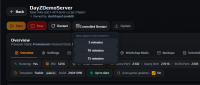
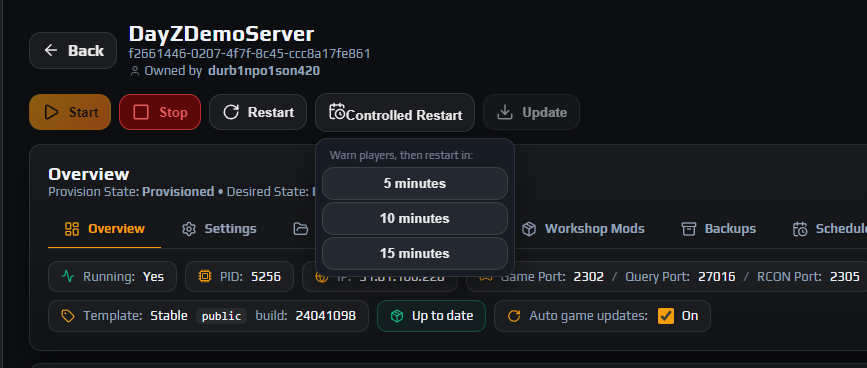
Go to the instance Overview tab. In the power control bar you will find Start, Stop, Restart, Controlled Restart and Update. Click Controlled Restart and a small menu drops down headed Warn players, then restart in: with three choices: 5 minutes, 10 minutes and 15 minutes.
Pick one. The button briefly reads Queuing… and you get a confirmation such as Controlled restart queued (10 min warning). A live timeline card appears directly above the Overview card and stays there for the whole run.
The button is unavailable in four situations, and the tooltip tells you which:
Server is not running— start it first.A controlled restart is already in progress— only one can run per instance at a time.Cannot restart while an update is in progress— wait for the game-data update to finish.Instance not provisioned— the instance is not ready yet.
Note: Nothing destructive happens the moment you click. The countdown, the lock and the kick are all still ahead of you, and you can call the whole thing off until the lock goes out.
3. Tell your players what to do with the warning
The broadcasts go out over BattlEye as global chat messages, so they land in the in-game chat box and nowhere else. Players with chat scrolled away, or sitting in a menu, can miss one. That is why the ladder repeats rather than announcing once.
The default wording is deliberately plain — Server restart in 10 minutes. down through Server restart in 30 seconds., followed at zero by Server restart is starting now. You will be kicked shortly.
Put this in your rules channel once and point at it forever. When a player sees a restart warning they should:
- Break contact. Do not start a fight, a raid or a heli crash run inside the warning window.
- Finish whatever is in their hands — a half-completed craft or an open inventory transfer is the easiest way to lose an item.
- Move somewhere they are happy to reappear: away from other players, away from infected, off a roof, out of the water.
- Log out normally before the kick if they want certainty. A manual disconnect and the panel’s kick both produce a clean disconnect, but leaving voluntarily means they choose the moment.
The reason the panel kicks players rather than simply killing the process is that a kick is a normal disconnect as far as the DayZ server is concerned. The server runs its usual disconnect path and writes the character out. Pull the process instead and there is no disconnect to run, so the character falls back to the last state the server committed — position, health and inventory included.
Careful: Aborting after the broadcasts have gone out does not un-send them. If you cancel, say so in chat yourself from the RCON tab, or half your players will log off anyway.
4. Watch the eleven-step timeline
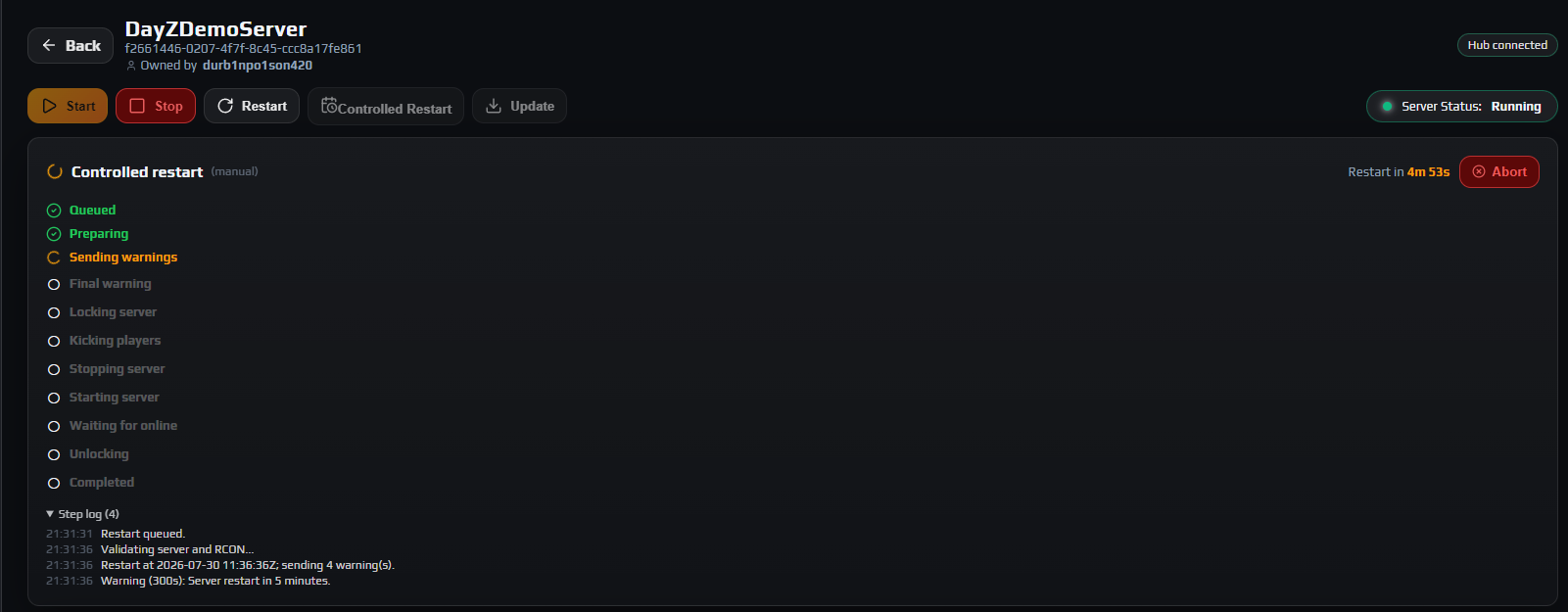
The card is headed Controlled restart with a note of who triggered it — (manual) for a button press or (scheduler) for a scheduled task. While the countdown is running it shows Restart in and a live clock such as 4m 05s. Once the lock is in place a locked badge with a padlock appears next to the title.
Underneath, every stage of the process is listed in order. Completed stages turn green, the current one spins amber, and a failure marks the stage it died on in red.
| Step | What is happening |
|---|---|
Queued | The request is accepted and waiting to be picked up. |
Preparing | The panel checks the instance is provisioned, running and has a resolvable RCON port, then fixes the exact restart moment so a queue delay cannot compress your warning window. |
Sending warnings | Each broadcast in the ladder goes out at its scheduled offset. |
Final warning | The zero-minute message is sent. |
Locking server | #lock is sent over RCON so no new player can join during the shutdown. |
Kicking players | The panel queries the player list and kicks each slot with the reason Server restart, then waits out a short post-kick delay. |
Stopping server | The game process is stopped now that nobody is connected. |
Starting server | The process is started again. |
Waiting for online | The panel waits until the server answers queries or reports a server FPS figure, which is the real proof it finished loading. |
Unlocking | #unlock is sent as a belt-and-braces measure. A fresh start is unlocked anyway — the lock does not survive a restart. |
Completed | The run is finished and the instance is back in service. |
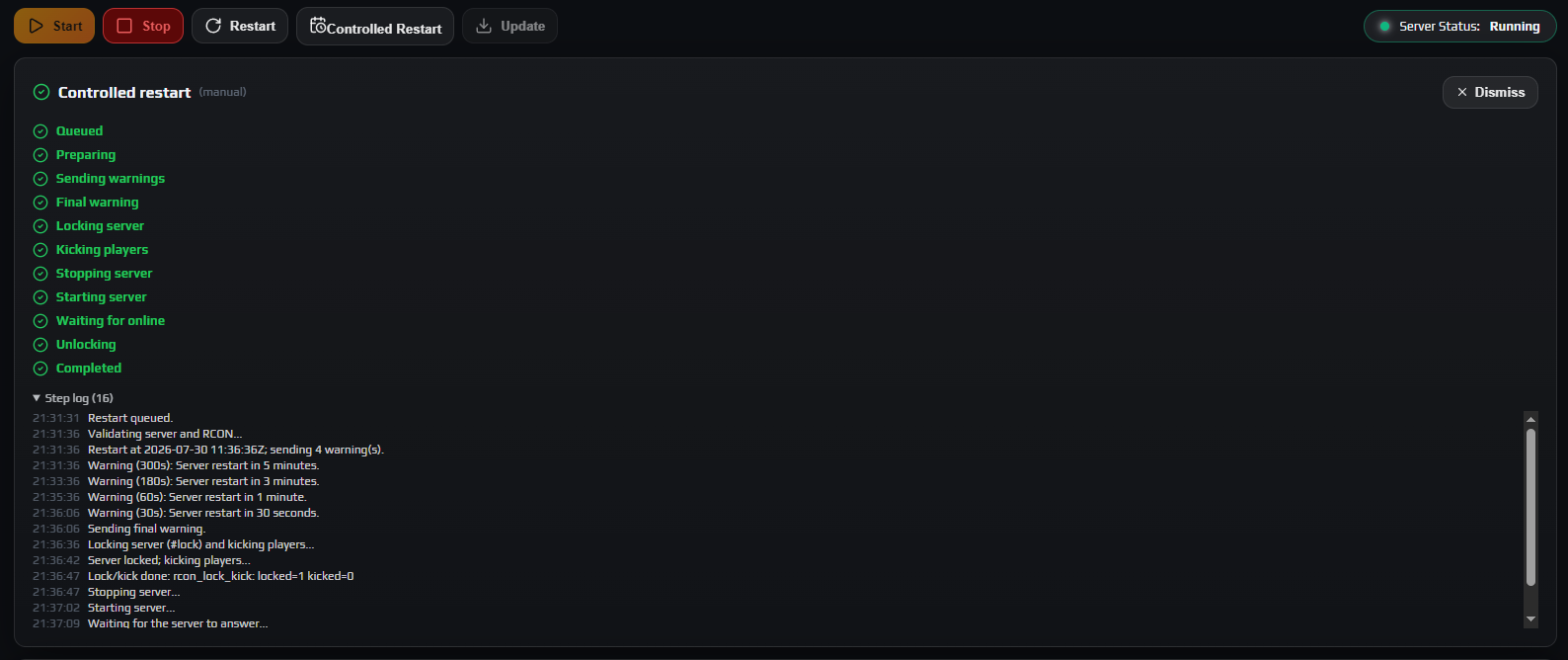
Expand Step log for the timestamped detail: which warning went out when, the result of the lock and kick step, and the exact reason for any failure. Two extra states never appear in the list because they replace it: Failed and Aborted.
5. Abort while you still can
An Abort button sits at the top right of the timeline card during the first four steps only: Queued, Preparing, Sending warnings and Final warning. Click it and the run stops where it is, the card reads This restart was aborted before the destructive phase. and the server keeps running with everyone still connected.
The moment the process reaches Locking server the button disappears, and the API will refuse a late attempt with The restart has entered its destructive phase and can no longer be aborted. That boundary is deliberate: once the lock and the kicks are in flight, stopping halfway would leave you with a locked, empty, still-running server, which is worse than either outcome.
Note: If you genuinely need to cancel after the lock, let the restart complete. It ends with the server up, unlocked and accepting players — the cost is the downtime you were trying to avoid, not any data.
6. Confirm the server is back, then clear the card
Watch the last three steps. Starting server and Waiting for online are where a modded server takes its time; the panel allows roughly two minutes for the stop, three for the start and five more for the server to answer, and it gives up and reports a failure rather than hanging forever.
You are back in service when the timeline reaches Completed, the Server Status pill reads Running and Server FPS on the Overview tab reports a number again. Click Dismiss to clear the finished card.
If it ended in Failed instead, the reason is printed at the top of the card and repeated in Step log. Read it before touching anything — Server did not stop in time. and Lock/kick step failed or timed out. point at completely different problems.
7. Check the Audit Log trail
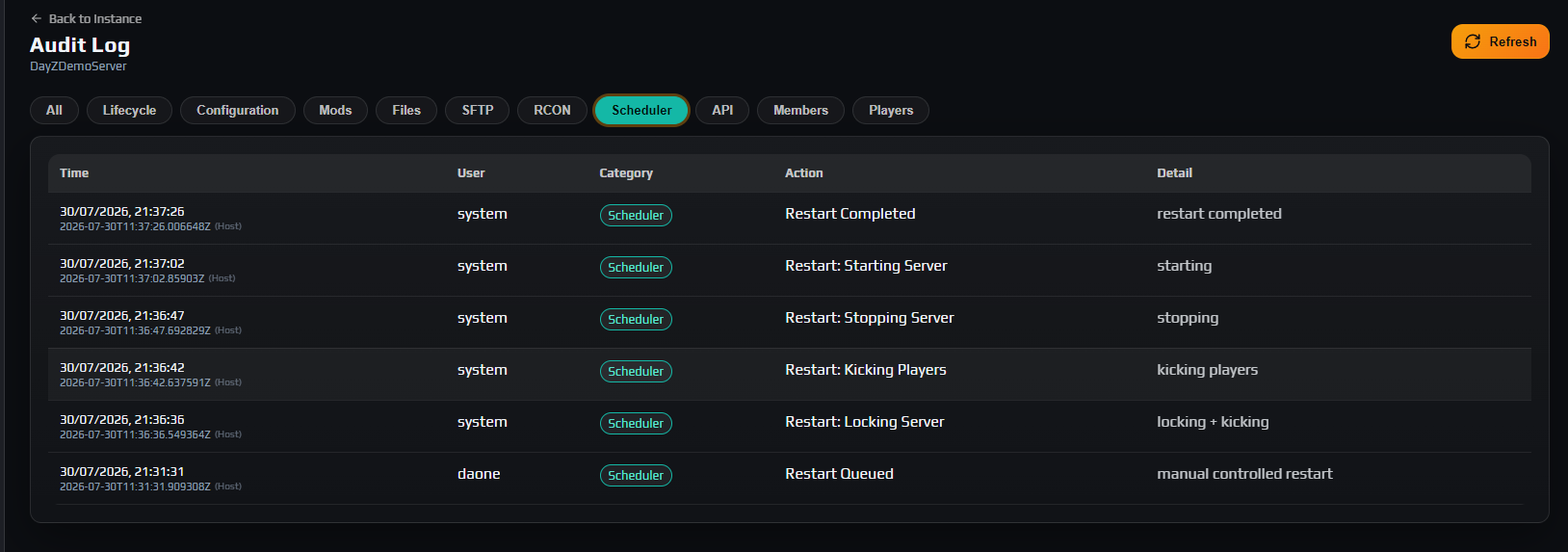
Every controlled restart writes itself into the Audit Log tab under the Scheduler category, so you can prove after the fact what happened and when. Filter to Scheduler and you will see the chain:
Restart QueuedRestart: Locking ServerRestart: Kicking PlayersRestart: Stopping ServerRestart: Starting ServerRestart Completed, orRestart Failed/Restart Aborted
This is the record that settles arguments. When a player insists they lost a backpack “in the restart”, the audit trail shows whether a controlled restart ran at all, whether it completed, and whether it was a member of staff who pressed the button. Actions taken by sub-users are attributed to them by name — see staff permissions and API keys.
8. Automate it so you rarely do this by hand
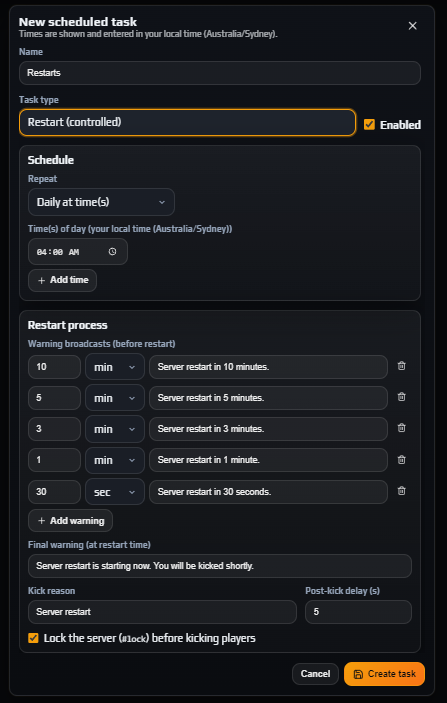
Doing this manually is for one-off maintenance. Routine restarts belong in the Scheduler tab: click New task, set Task type to Restart (controlled) and give it a daily time or two. Scheduled runs use exactly the same eleven-step engine and show the same live timeline, and the Next run column tells you when the next one lands.
A scheduled restart task exposes more control than the three-option dropdown does. Under Restart process you can:
- edit the Warning broadcasts (before restart) ladder outright — change the offsets, rewrite the text, or Add warning for extra checkpoints;
- set the Final warning (at restart time) message;
- set the Kick reason players see, and the Post-kick delay (s) breathing room before the stop;
- turn off Lock the server (#lock) before kicking players, though there is rarely a good reason to.
Set the times to your quiet hours and you will mostly stop thinking about restarts. Full detail, including how the schedule handles time zones, is in automatic restarts with the Scheduler.
Note: Restarts and backups solve different problems. A controlled restart prevents rollbacks; backups undo them. Turn both on — see automatic backups and restore.
Troubleshooting
Players lost gear or spawned back at an old position after a restart
Why it happens. The server process was ended while they were still connected — a Stop, a plain Restart, a crash or a memory kill. Without a disconnect, DayZ never runs its save-on-disconnect path for those characters, so each one reverts to the last state the server had committed. Anything gained since then is gone, and items moved around in the meantime can end up existing in two places at once, which is where duping complaints come from.
How to fix it. Use Controlled Restart from now on, and schedule the routine ones. For the damage already done, the Backups tab can restore Players DB on its own without touching world data — the server must be stopped to restore. See automatic backups and restore.
Nobody saw the restart warning in chat
Why it happens. Warnings are BattlEye global chat messages and nothing else. A player who joined between two broadcasts, had chat scrolled away, or was in a menu simply did not see one. If RCON itself cannot authenticate, none of them are delivered at all.
How to fix it. Open the RCON tab and check the badge reads Connected. If it does not, re-check the admin and RCON password in Settings → Server & RCON Authentication — remember it is 4 to 10 characters, letters and numbers only. Then prefer a 10 or 15 minute window, and in a scheduled task add extra checkpoints with Add warning.
The Controlled Restart button is greyed out
Why it happens. Four conditions disable it, and the tooltip names the one that applies: the server is not running, a controlled restart is already in progress, a game-data update is in flight, or the instance is not provisioned yet. A sub-user without the Start / stop / restart permission does not see the power controls at all.
How to fix it. Hover the button and read the tooltip. If a previous run is stuck showing as active, open the timeline card — a finished run needs Dismiss, and a live one needs Abort or has to be allowed to finish. For a missing permission, the instance owner grants it under Members.
The restart ended in Restart Failed
Why it happens. Each stage has its own deadline and reports its own reason. Lock/kick step failed or timed out. means RCON did not answer, which is almost always the password. Server did not stop in time. and Server did not start in time. usually mean a heavy modded load or a node under pressure. Server did not come online in time after start. means the process launched but never finished loading its mission.
How to fix it. Read the reason on the card and the detail in Step log, then check the Live Logs card with Stream set to rpt for the boot tail. The panel does not abandon your instance: if it gave up after asking for a stop, it puts the instance back to running on its own, and if the lock was still held it queues an #unlock.
Players cannot join and the server looks locked out
Why it happens. A restart failed after #lock went out but while the server was still up, so the lock outlived the run. The panel tries to clear this automatically, but it cannot if RCON is unreachable — which is often the same fault that broke the restart.
How to fix it. Open the RCON tab, click Connect RCON, and send #unlock. If RCON will not connect, fix the password first. A completed Controlled Restart also clears it, because a freshly started server is unlocked. More RCON detail is in RCON, bans, whitelist and priority queue.
Frequently asked questions
Does Controlled Restart avoid kicking players?
No, and nothing can. A DayZ restart ends the game process, which disconnects everyone on it. What Controlled Restart changes is that players are warned on a repeating countdown, the server is locked so nobody joins into a shutdown, and each player is disconnected properly instead of having the server disappear from under them — which is what keeps their character state intact.
What is the difference between Restart and Controlled Restart?
Restart stops and starts the process immediately: no warning, no lock, no kick. It is the right tool on an empty server or when something is already broken. Controlled Restart adds the warning ladder, the #lock, the RCON kick and the live timeline, and it is what you should use any time somebody is connected.
Why does the panel lock the server before kicking players?
So that the server does not refill while it is emptying. Without the lock, a player can connect during the kick sequence, spend fifteen seconds loading in and then be killed by the shutdown with nothing saved. The lock is temporary in every sense: it does not survive the restart, the panel sends an #unlock as a final step anyway, and it is cleared automatically if the run fails while still holding it.
How long is my DayZ server down during a controlled restart?
Only the tail end of the process is downtime — the whole warning window is normal play. Actual downtime depends on your map and mod list, so watch the timeline rather than working to a fixed number: a heavily modded server takes substantially longer to boot than vanilla. What is fixed is when the panel gives up: it allows roughly two minutes for the stop, three for the start and five more for the server to answer before declaring a failure. Those are outer bounds, not the expected wait.
Can I use Controlled Restart to save settings that need the server stopped?
Not directly, because it always brings the server back up. Instance Settings still requires a stopped instance to save. The clean pattern is to run a Controlled Restart so players leave properly, then click Stop as soon as the timeline reports Completed, make your changes and start it again. Config detail is in every serverDZ.cfg setting explained.
Can a controlled restart damage bases, vehicles or stashes?
A clean shutdown will not. Player characters and world objects are stored separately under mpmissions/<world>/storage_*/, and a controlled restart lets the server close both properly. It is the abrupt kill that puts them at risk, which is one more reason not to reach for Stop with players online. Keep backups on regardless, because a restart is not the only thing that can go wrong.