

Backups on your DZSERVERS.HOST server run automatically on a frequency you choose, are kept for 30 days, and restore one category at a time — so you can roll back a griefed base without resetting a single player’s character, or put back only your economy XMLs after a bad edit. Everything lives on the Backups tab of your instance: a Backup schedule card, a Backup history list, and a restore panel where you tick which parts of which world to put back.
This guide covers that automatic side. There is no create-now button and no download button on the tab, which is deliberate: a copy on your own disk is a separate job over SFTP.
Before you start
- An instance and the Manage backups permission. The Backups tab only appears in the tab bar if you have it.
- The Start / stop / restart permission too if you intend to restore — a restore needs the server stopped, and both the panel and the node refuse otherwise.
- A rough idea of when the problem started, so you pick the right entry. History timestamps are shown in your own local time.
1. Open the Backups tab
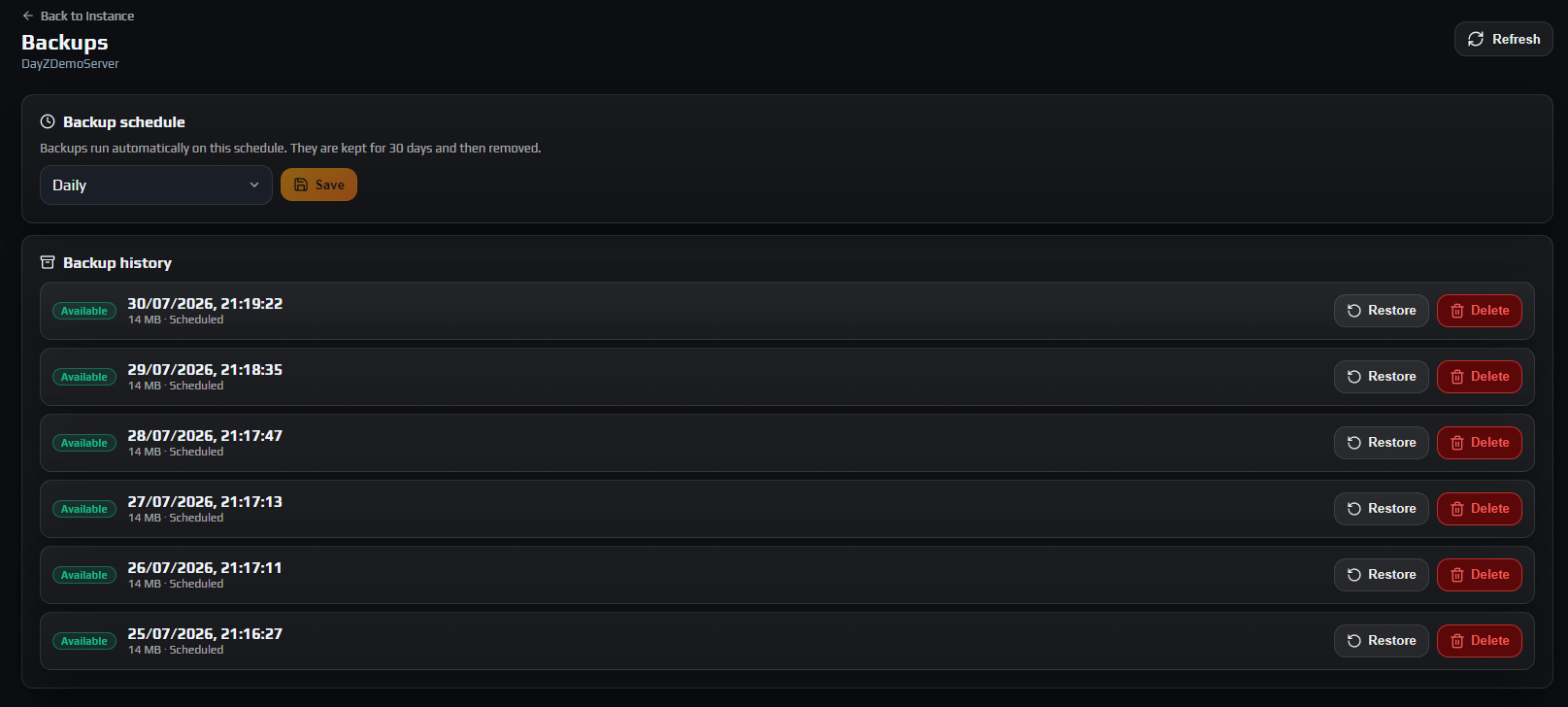
Go to Instances → your instance → Backups. The page opens with two cards, Backup schedule and Backup history. Refresh re-reads both; Back to Instance returns you to Overview.
A message reading You don't have permission to manage backups on this instance. means you are a sub-user without the Manage backups permission, which the owner grants under Members.
Note: One permission covers the whole tab: anyone who can change the schedule can also restore and delete, so grant it only to people you trust with the persistence data. Every schedule change, restore and delete is attributed in the Audit Log — see staff permissions and API keys.
2. Choose a backup frequency
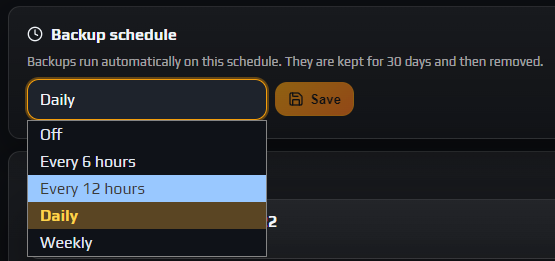
The Backup schedule card holds one dropdown. Pick a value and click Save; a toast confirms it, such as Backup frequency set to Daily. Discard appears beside Save while a change is unsaved.
| Option | What it does |
|---|---|
Off | No backups at all. Existing entries stay until retention removes them. |
Every 6 hours | For a busy server where six hours of base building is a lot to lose. |
Every 12 hours | A good default for most community servers. |
Daily | Enough for a low-population or PvE server. |
Weekly | Only useful alongside your own manual copies. |
The interval runs from the last backup attempt, not against the clock, so Daily means about every 24 hours and drifts slightly forward each day; there is no field to pin it to a set hour. Backups need no downtime either: the node takes a Volume Shadow Copy snapshot first, so players.db is captured cleanly while DayZ holds it open and players are online.
Careful: Off means exactly that. Turn backups off and there is nothing on the node to restore from when someone gets griefed three days later.
Note: A banner reading Backups are not fully configured on this node yet. means your choice is saved but will not produce entries until an administrator finishes enabling backups on that node. Open a ticket if it persists.
3. Know what is in a backup, and what is not
A backup captures your mission folder under mpmissions — persistence and mission config — split into three independently restorable categories:
- Players DB — player characters and inventory:
players.dbplusplayers.db-walandplayers.db-shm. - World Data — built structures, vehicles and other persisted world state. Everything else in the
storage_*folder. - XMLs & JSONs & other(s) — mission-level config:
types.xml, events, spawn configs and the rest of the mission folder outsidestorage_*.
mpmissions/
  dayzOffline.chernarusplus/       one "world" in the restore tree
    db/                            XMLs & JSONs & other(s)
    cfgeconomycore.xml             XMLs & JSONs & other(s)
    cfgspawnabletypes.xml          XMLs & JSONs & other(s)
    storage_1/
      players.db                   Players DB
      players.db-wal               Players DB
      players.db-shm               Players DB
      data/                        World Data
Every mission folder under mpmissions is captured separately, so if you have switched maps you will see more than one world in the restore tree.
Careful: Not in a backup: your mods, your logs under profiles, and serverDZ.cfg. The config is safe anyway because the panel writes it from the typed Instance Settings editor, but a mod that keeps its state under profiles is outside the backup’s scope — copy that folder down yourself over SFTP.
4. Read the backup history
Backup history lists entries newest first. On a new instance it reads No backups yet. They'll appear here once the schedule runs.; the first arrives after one interval has elapsed.
Each row shows a status pill, the creation time in your local timezone, the compressed size, and whether it was Scheduled or Manual. Everything the schedule produces is Scheduled; Manual only appears on an entry created from our side, for instance while a support ticket is being worked.
| Status | Meaning |
|---|---|
Available | Finished and restorable. The only status Restore accepts. |
Creating | Snapshotting and zipping now. Becomes Available on its own. |
Restoring | A restore from this entry is running. The backup file is not modified, so the row returns to Available either way. |
Deleting | Removal is queued, either because you asked or because retention aged it out. |
Failed | Could not be created. The reason is appended after the size. |
Restore opens the restore panel — greyed out unless the entry is Available and the server is stopped, and hovering it names the blocking condition. Delete removes the backup file from the node. Entries are deleted automatically 30 days after creation, so Every 6 hours carries roughly 120 restore points and Weekly roughly four.
Data loss risk: Delete is permanent, and the confirmation says so: This cannot be undone. There is no recycle bin and we cannot bring a deleted backup back. Use it to clear Failed entries, not to tidy up.

5. Stop the server before you restore
While the instance is up, Backup history shows a banner reading The server is running. Stop it before restoring a backup. and every Restore button is disabled with the tooltip Stop the server first.
That is not a formality. A running DayZ server holds players.db open and flushes persistence as it goes and again on shutdown, so restoring underneath it either fails on a locked file or gets overwritten the moment the server next saves — burning the outage without fixing anything. The panel and the node both refuse outright.
Click Stop on Overview. If players are online, use Controlled Restart first so they are warned and can log out somewhere safe — restarting without rollbacks explains what an abrupt kill costs them. Back on Backups, the banner clears a few seconds after the instance reports Stopped.
Careful: Plan the outage. The server stays down until you start it again, and a large World Data category on a long-lived server takes a while to unpack.

6. Restore only the parts you need
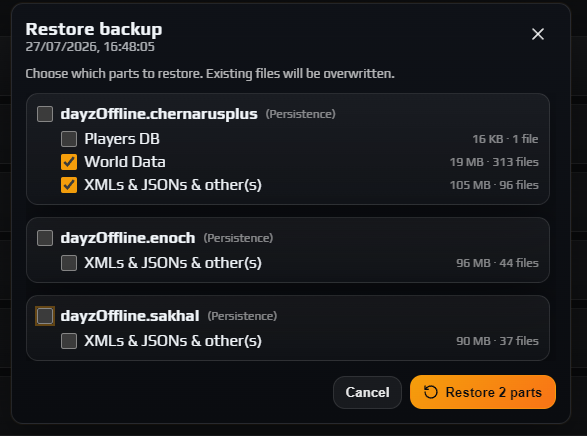
Click Restore on the entry you want. A panel headed Restore backup opens, subtitled with that backup’s timestamp, and states plainly: Choose which parts to restore. Existing files will be overwritten.
Below is a checkbox tree, one group per world. The group header is the mission folder name — dayzOffline.chernarusplus — with (Persistence) beside it, and ticking it toggles all of its categories. Each category shows its size and file count, so you can see that Players DB is a few megabytes while World Data may be hundreds.
Data loss risk: Everything starts ticked. Untick what you want to keep, because whatever stays ticked is overwritten from the backup and the live copy is gone. Leaving Players DB ticked when you only meant to fix a base rolls every character back to that timestamp — inventory, position, health, all of it.
That separation is the whole point:
- A group blew up someone’s base overnight. Tick World Data only: structures and vehicles go back to last night, and everyone keeps the character and gear they have now.
- A bad
types.xmledit broke your economy. Tick XMLs & JSONs & other(s) only: loot config reverts, no base or character is touched. Editing types.xml and the loot economy covers avoiding the next one.
The confirm button counts your ticks — Restore 1 part for one category, Restore 3 parts for three — and stays disabled until a box is checked. Cancel changes nothing.
Note: A restore overwrites the files that are in the backup and leaves anything else alone; it is not a wipe-and-replace of the directory. A genuinely clean slate is a wipe, which is not a panel operation — open a ticket.
7. Watch it finish, then start the server
Confirming queues the work on the node. The pill switches to Restoring and a progress strip appears under that row, polled every second or two until it settles on Done or Failed; Dismiss clears it. The backup file is never modified, so the row returns to Available either way — and if it failed, the reason is appended after the size. Read that before retrying.
Now click Start on Overview and verify before announcing you are back: Server Status reads Running, Server FPS reports a number, and the thing you restored looks right in game. If you restored Players DB, tell players first — a silent character rollback reads as a bug.
8. Keep your own copy for anything older than 30 days
This tab is 30 days of node-side history, not an archive, and its entries are only ever restored in place. Two situations need more:
- A copy off the node. Pull
mpmissions/<world>/storage_*down over SFTP. That is the whole persistence set, and it is yours to keep — see making and downloading a manual backup over SFTP. - Something risky right now — an economy rewrite, a mod that touches persistence, a map change. Do not wait for the schedule: stop the server, copy the mission folder down, then make the change. Connecting with SFTP covers credentials and clients.
Note: SFTP is the route for anything large either way: the web File Browser caps uploads at 300 MB against SFTP’s 2.5 GB, and a mature storage_1 folder can be well past the smaller limit. A restore here only reads backups this panel created, so an archive from another host goes in over SFTP too — see migrating a DayZ server to a new host.
Troubleshooting
The Restore button is greyed out and I cannot click it
Why it happens. Only two things disable it: the entry is not Available, or the instance is running. Restoring into live persistence would be blocked by open file handles or silently overwritten.
How to fix it. Hover the button — the tooltip names the reason, either Stop the server first or Backup not available. Stop the instance on Overview and wait for the banner to clear, or pick an entry whose pill reads Available.
My backup history is empty and no backups are being created
Why it happens. In order of likelihood: the schedule is Off; the first interval has not elapsed on a new instance; or the node has not finished having backups enabled, which the panel says with a banner reading Backups are not fully configured on this node yet.
How to fix it. Check the dropdown is not Off and Save if you change it. On a new instance give it one full interval — Daily means waiting a day for the first entry, so choose Every 6 hours if you want one sooner. If the node banner is showing, open a ticket; your schedule is already saved.
A backup entry says Failed and it is still sitting in the list
Why it happens. The node could not complete the snapshot or the zip, and the reason is appended after the size. Retention only prunes entries that reached Available, so a Failed row is never aged out.
How to fix it. Read the note, then Delete the row to keep the list readable. The schedule carries on and tries again at the normal interval, so one failure needs no action. If several in a row fail, open a ticket with the note text.
I restored a backup but players say their bases and stashes are still gone
Why it happens. Almost always an unticked category. Bases, vehicles, tents and buried stashes are World Data, not Players DB — restoring only the players database brings characters back without touching a structure.
How to fix it. Stop the server again, open Restore on the same entry and tick World Data this time. Take both categories from one backup rather than mixing timestamps, or you end up with characters from one moment and a world from another.
The Backups tab is missing from my instance tab bar
Why it happens. The tab bar is permission-gated per instance, and without Manage backups the tab is not rendered at all — which is why it looks absent rather than locked.
How to fix it. If you own the instance, check you are signed in to the right account. Otherwise ask the owner to add Manage backups to your grant under Members.
Frequently asked questions
Can I take a backup right now, on demand?
Not from the Backups tab — the schedule is the only trigger and there is no create-now button. For a snapshot at a specific moment, such as just before a risky edit, stop the server and copy mpmissions/<world>/storage_* down over SFTP instead; making a manual backup over SFTP covers it.
Can I download a backup from the panel?
No. Automatic backups live on the node and are only ever restored in place, so there is no download button. For a copy on your own disk, take it yourself over SFTP — which also removes the 30-day limit, since a file you have downloaded is yours indefinitely.
Does my server have to be offline for a backup to be taken?
No. The node takes a Volume Shadow Copy snapshot before it reads anything, so players.db is captured consistently while DayZ holds it open and players are online. Scheduled backups need no downtime; restoring is the operation that requires the server stopped.
How long are backups kept, and can I keep them longer?
Thirty days from the moment each backup was created, after which it is deleted automatically. The window is set per node and is not adjustable per instance, so anything you need beyond a month has to be downloaded over SFTP and stored yourself.
Does the Daily option run at a fixed time of day?
No — the interval runs from the last backup attempt rather than against the clock, so Daily means roughly every 24 hours and drifts a little forward each day. There is no field to pin it to a particular hour, and the Scheduler tab offers no backup task either; it handles restarts, start/stop and RCON messages only.
Will restoring roll back player characters as well as bases?
Only if you tick Players DB in the restore panel. Every category starts ticked, so untick it deliberately when you want to fix the world and leave characters where they are — that separation is the main reason to use category-level restore rather than putting a whole backup back.