


Every serverDZ.cfg value you are likely to want is already a typed field in the panel: open Instances → your server → Settings and the Instance Settings editor lists all thirty of them, each with its own help line underneath. This guide documents every field — the serverDZ.cfg key it writes, its accepted range and a recommended value — plus the two things people get wrong most often: how time acceleration maps to real day length, and what changing the map does to your persistence.
The editor only saves while the instance is Stopped, so plan a stop or a Controlled Restart before you start editing. Nothing here takes effect until the server boots again.
Before you start
- An instance you can stop. Save is disabled while the status pill reads
Running. - The Edit settings permission. Sub-users without it do not see the Settings button at all, and changing the map needs the separate Change mission permission — see staff permissions and API keys.
- Nothing else. You never need to open
serverDZ.cfgby hand for any field listed below, although you can read it in File Browser under theconfigshare if you want to check the panel’s work.
1. Stop the instance and open the editor
On Overview, click Stop and wait for the status pill to read Stopped. With players online, warn them with a Controlled Restart first — see restarting without rollbacks — then stop it.
Now click Settings in the tab bar. A dialog opens titled Instance Settings with your instance id beneath it. It contains, in order:
- A two-column grid of all thirty
serverDZ.cfgfields, each with its help text under it. - Edit Mission — the map selector, covered in step 7.
- Server & RCON Authentication — the admin and RCON password, covered in getting started with the control panel.
Two behaviours are worth knowing before you touch anything. Grey placeholder text in a numeric or text box is DayZ’s own default, not a value you have set. And clearing a field removes that key from serverDZ.cfg entirely, which hands the setting back to the engine default rather than writing a zero. That is the correct way to undo a change you no longer want.
Careful: Save sends only the fields you actually changed, so leaving the rest untouched is safe. A successful write shows Changes Saved!; if you changed nothing you get No changes required. While the instance is running you get a red Stop the instance to change settings. banner and a dead Save button.
Note: Three things people look for here are deliberately elsewhere: whitelist enforcement is on Players → Whitelist, mods are on Workshop Mods, and BattlEye filter files are not exposed at all.
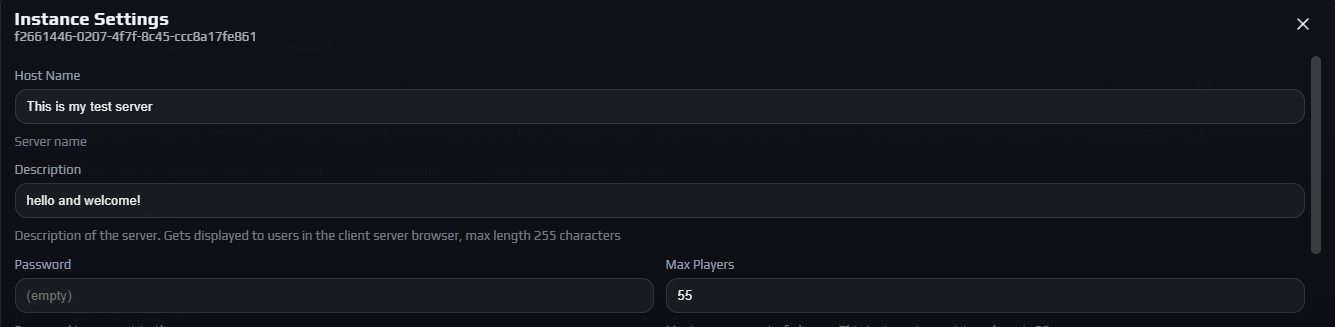
2. Identity and access: name, description, password and slots
These four are the only fields most servers ever change, and they are what a player sees before deciding whether to join. Treat Host Name as a search result rather than a title: the map name and your headline features earn far more clicks than decoration.
| Field | serverDZ.cfg key | Limits | What to set |
|---|---|---|---|
| Host Name | hostname | Text, 96 characters | The name in the server browser. Lead with the map and your two biggest selling points. |
| Description | description | Text, 255 characters | One line of extra detail shown in the client server browser. Optional. |
| Password | password | Text | The join password. Leave it empty for a public server — empty means the key is removed, not set to blank. |
| Max Players | maxPlayers | 1–127, capped at your slot count | Your purchased slot count, or lower if you want to run smaller for a while. |
Careful: Host Name lets you keep typing past 96 characters but the save is rejected with 'hostName' too long (max 96). Count it, or paste it somewhere that shows a character count first.
Max Players is the one field with a hard ceiling above it. Its help line tells you yours — Maximum amount of players. This instance's provisioned cap is 60. with your own number. Anything from 1 up to that cap is allowed; above it the save fails. The agent also re-checks the value before every launch and clamps it back down, so editing serverDZ.cfg by hand will not get you extra slots.
3. Time of day, and how long a day actually lasts
This is the group that generates the most confusion, because the two acceleration fields multiply together rather than acting independently.
| Field | serverDZ.cfg key | Range | Recommended | What it does |
|---|---|---|---|---|
| Server Time | serverTime | SystemTime or YYYY/MM/DD/HH/MM | SystemTime | The in-game time the server starts at. SystemTime uses the host machine’s local clock; a literal value looks like 2015/4/8/17/23. |
| Server Time Acceleration | serverTimeAcceleration | 0.1–64 | 4 to 12 | Multiplier for the passage of in-game time. At 1 a full day takes 24 real hours; at 24 it takes one. |
| Server Night Time Acceleration | serverNightTimeAcceleration | 0.1–64 | 2 to 6 | A second multiplier applied on top of the first, during night only. Use it to keep nights short without speeding up the whole day. |
| Server Time Persistent | serverTimePersistent | Checkbox (0 or 1) | On | Saves the clock to storage, so the next start resumes where the last one stopped instead of jumping back to Server Time. |
Work the arithmetic through once and it stops being mysterious. Take a 24-hour in-game cycle split evenly into 12 hours of daylight and 12 of night; the real split shifts with the map and the date, but even is close enough to plan with. With Server Time Acceleration at 8 and Server Night Time Acceleration at 4:
- Daylight runs at 8×, so 12 in-game hours take 90 real minutes.
- Night runs at 8 × 4 = 32×, so 12 in-game hours take 22.5 real minutes.
- A full cycle is therefore just under two real hours, of which players spend about 20 minutes in the dark.
The general form: real minutes per cycle = (daylight hours × 60 ÷ acceleration) + (night hours × 60 ÷ (acceleration × night acceleration)). Written into the file, that example is:
serverTime = "SystemTime";
serverTimeAcceleration = 8;
serverNightTimeAcceleration = 4;
serverTimePersistent = 1;
Careful: These two fields are the only numbers in the editor with no enforced ceiling — the box will accept 500. DayZ only honours 0.1 to 64, so keep yourself inside that range. Values under 1 slow time down instead of speeding it up.
Server Time Persistent matters more than it looks. With it off, every restart re-reads Server Time, so a server pinned to a literal timestamp lands on the same hour forever. With it on, the clock carries across restarts and keeps moving through the week.

4. Gameplay restrictions
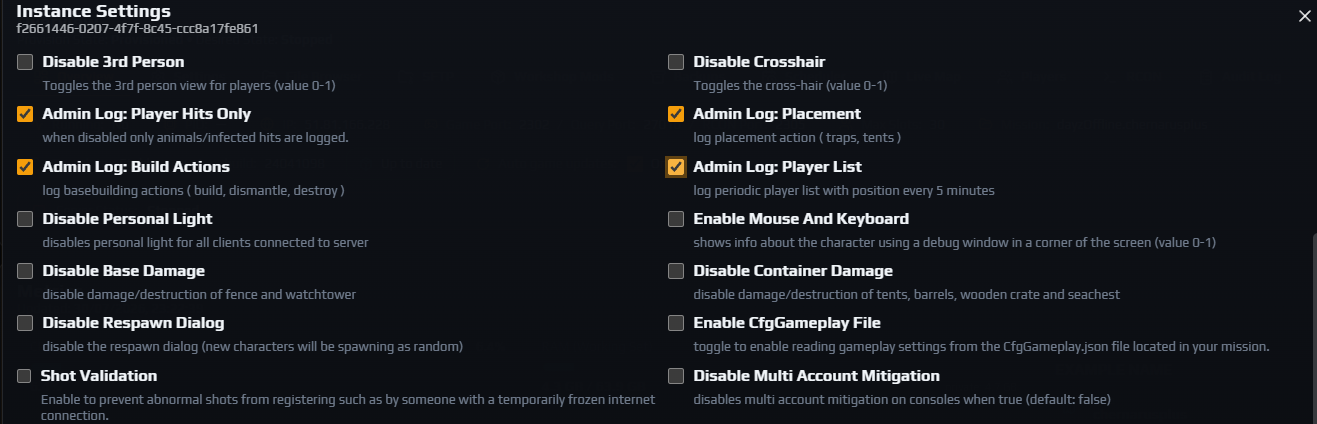
Every field in this group is a checkbox that writes 0 or 1. Read the labels carefully: most of them are phrased as disable, so ticking the box removes the feature rather than adding it.
| Field | serverDZ.cfg key | Recommended | What it does |
|---|---|---|---|
| Disable 3rd Person | disable3rdPerson | Off, unless you want a first-person server | Ticked forces every player into first person. This is the setting that defines a hardcore or first-person-only server. |
| Disable Crosshair | disableCrosshair | Off for a public server, on for hardcore | Ticked removes the centre crosshair, so players must use weapon sights. |
| Disable Personal Light | disablePersonalLight | On for real darkness | Ticked removes the faint light that follows every player, which is what makes DayZ nights genuinely dark. |
| Disable Base Damage | disableBaseDamage | Off | Ticked makes fences and watchtowers indestructible. Popular on PvE; on a PvP server it means no one can ever be raided. |
| Disable Container Damage | disableContainerDamage | Off | Ticked makes tents, barrels, wooden crates and sea chests indestructible. |
| Disable Respawn Dialog | disableRespawnDialog | Off | Ticked removes the spawn-choice dialog, so new characters always spawn at a random point. |
| Shot Validation | shotValidation | On | Ticked makes the server reject shots that arrive in an impossible state, such as from a client whose connection briefly froze. |
| Enable Mouse And Keyboard | enableMouseAndKeyboard | Off | A console-platform option that permits mouse and keyboard input on Xbox and PlayStation servers. It changes nothing on a PC server. |
| Disable Multi Account Mitigation | disableMultiAccountMitigation | Off | Another console-only option, which turns off the platform’s multi-account protection. No effect on PC. |
Note: The help line under Enable Mouse And Keyboard describes a character debug window. That text belongs to a neighbouring key in Bohemia’s own annotated serverDZ.cfg and travelled with it; the key itself is the console input option above, so ticking it will not give you a debug overlay.
Building a first-person server? Tick Disable 3rd Person and Disable Crosshair together and say so in Host Name — players searching for first person read the browser text, they do not filter on the key.
5. Admin logging: what lands in the ADM log
These four checkboxes control how much detail the engine writes to its admin log. The panel always launches your server with -adminlog and a profiles directory, so the .ADM file always exists — you can read it live from the Live Logs card on Overview by setting the Stream dropdown to adm, or open it in the profiles share.
| Field | serverDZ.cfg key | Recommended | What it does |
|---|---|---|---|
| Admin Log: Player Hits Only | adminLogPlayerHitsOnly | On | Ticked logs only hits that involve players. Unticked logs every hit including animals and infected, which buries the PvP you were looking for. |
| Admin Log: Placement | adminLogPlacement | On | Logs placement actions such as traps and tents. Useful for tracing who put a bear trap in a loot room. |
| Admin Log: Build Actions | adminLogBuildActions | On | Logs base building: build, dismantle and destroy. Your evidence trail for raid and griefing disputes. |
| Admin Log: Player List | adminLogPlayerList | On | Writes a list of connected players and their positions every five minutes. Invaluable after the fact; it also grows the log steadily. |
Turn all four on. The log is the only record of what happened once players have logged off, and it cannot be reconstructed retroactively — a setting you left off yesterday tells you nothing about yesterday.
Note: The ADM log answers “what did this player do”. For “who is on right now and where”, use the live player map instead, and for kicks and bans use RCON, bans and the whitelist.
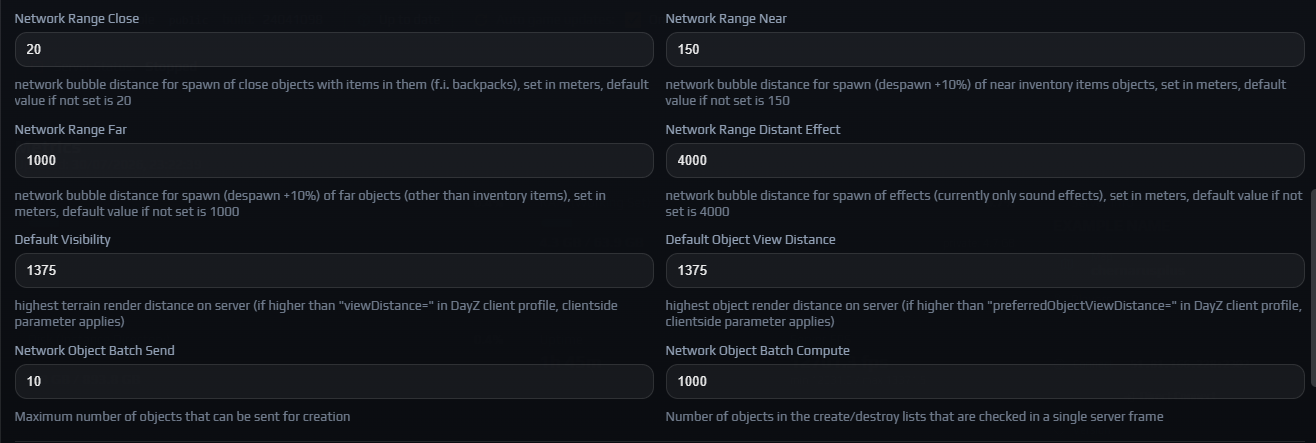
6. Networking, view distance and object streaming
Everything in this group trades server CPU and bandwidth for what players can see and how quickly the world appears around them. The defaults are Bohemia’s and they are well chosen; change them one at a time and watch Server FPS on Overview afterwards.
| Field | serverDZ.cfg key | Range | Recommended | What it does |
|---|---|---|---|---|
| Network Range Close | networkRangeClose | 0–2200 | 20 | Distance in metres at which objects that contain items, such as backpacks, are spawned for a client. |
| Network Range Near | networkRangeNear | 0–2200 | 150 | Distance in metres at which loose inventory items are spawned for a client. Despawn happens 10% further out. |
| Network Range Far | networkRangeFar | 0–2200 | 1000 | Distance in metres at which everything other than inventory items is spawned. Raising this is the usual way to see distant vehicles — and the usual way to wreck server FPS. |
| Network Range Distant Effect | networkRangeDistantEffect | 0–8000 | 4000 | Distance in metres at which effects are spawned. Currently sound effects only, so this is what governs how far away gunshots can be heard. |
| Default Visibility | defaultVisibility | 0–5000 | 1375 | Highest terrain render distance the server permits. A client asking for less than this gets what it asked for; a client asking for more is capped here. |
| Default Object View Distance | defaultObjectViewDistance | 0–5000 | 1375 | The same ceiling for objects rather than terrain. |
| Network Object Batch Send | networkObjectBatchSend | 1–500 | 10 | How many objects the server may send for creation in one go. Higher values populate the world faster and cost more frame time. |
| Network Object Batch Compute | networkObjectBatchCompute | 100–8000 | 1000 | How many entries in the create and destroy lists the server checks per frame. |
Careful: Raising the network ranges is the most common self-inflicted performance problem on a DayZ server. Every metre you add is more objects the server tracks and streams for every connected player, and the cost scales with player count. If Server FPS drops after a change, put it back.
Heavily modded servers are usually better served by leaving these alone and managing mod load order instead. Loot volume belongs in types.xml and the loot economy, not here.
7. Enable CfgGameplay File, and changing the map
Two controls reach outside serverDZ.cfg, so they behave a little differently.
Enable CfgGameplay File is the last checkbox in the grid and writes enableCfgGameplayFile = 1;. With it on, the engine also reads gameplay values from cfggameplay.json inside your mission folder — things serverDZ.cfg cannot express, such as stamina and base-building rules. The panel neither edits nor validates that file, so check it exists in File Browser → mpmissions → your mission before ticking the box, and read the rpt stream on the next start. It is JSON: one stray comma is enough to break it.
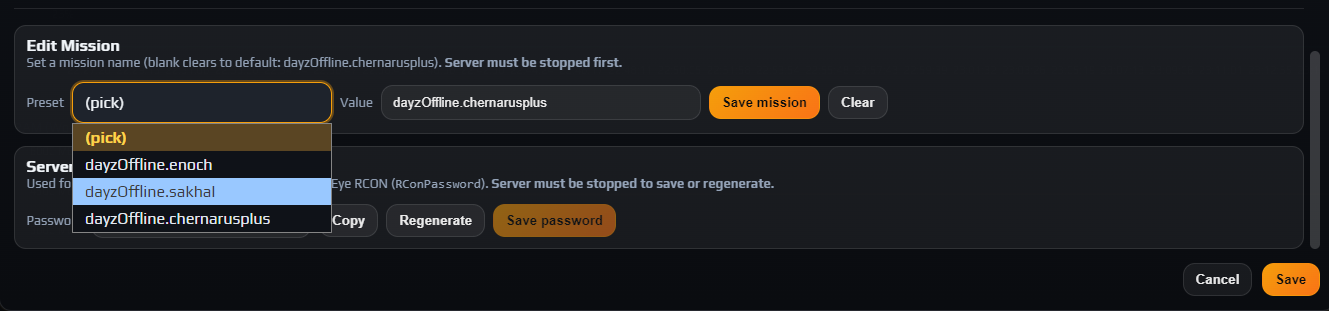
Edit Mission sits under the field grid and is how you change map. Pick from the Preset dropdown or type into the Value box:
| Preset | Map |
|---|---|
dayzOffline.chernarusplus | Chernarus — the default |
dayzOffline.enoch | Livonia |
dayzOffline.sakhal | Sakhal |
Then click Save mission. Clear only empties the box on screen; you still have to save, and a blank value resolves back to dayzOffline.chernarusplus. Both buttons are disabled while the server is running, and this one save is governed by the Change mission permission rather than Edit settings.
Data loss risk: A mission name is a persistence world. Characters, bases, vehicles and the loot economy all live under mpmissions/<mission>/storage_*/, so switching map converts nothing — it starts a fresh world and leaves the old one untouched on disk. Switching back later brings the old world with it. Take a backup first regardless: see automatic backups and restore.
Careful: Whatever you type must match a folder that exists under mpmissions, because the launch command points straight at it. A mission name with no matching folder means the server will not start.
8. Save, start and check your work
Click Save at the bottom of the dialog. You want Changes Saved! in a green banner. Anything else is telling you something:
No changes required.— the editor compared your fields against what it loaded and found nothing different.Stop the instance to change settings.— the instance is not stopped.- A red message naming one field, such as
'hostName' too long (max 96).— fix that field and save again. Nothing was written.
Edit Mission and Server & RCON Authentication have their own buttons and save independently of the main Save, so if you changed the map or the password, make sure you pressed Save mission or Save password too. Close the dialog with Cancel, the Close icon in its top corner, or the Escape key.
Now go back to Overview and click Start. Watch the Live Logs card with Stream on rpt through the first boot — a bad value that the panel accepted will show up there rather than in the panel. Once it is up, your changes are live: check the day length against the clock, or open config/serverDZ.cfg in File Browser and read the keys back.
Note: Every save is attributed. Audit Log records a Configuration entry of Settings Update for the field grid and Mission Change for the map, with the account that did it — useful when several staff share access.
Troubleshooting
The Save button in Instance Settings is greyed out
Why it happens. Save, Save mission, Regenerate and Save password are all disabled unless the instance is stopped, and a red Stop the instance to change settings. banner appears at the bottom of the dialog. serverDZ.cfg is read once at boot and the engine holds the file open while it runs, so a write underneath a live server would be discarded or fail outright.
How to fix it. Click Stop on Overview, wait for Stopped, then reopen Settings. If the Settings button is missing altogether rather than Save being dead, your account lacks the Edit settings permission on this instance.
Saving fails with hostName too long (max 96)
Why it happens. The Host Name box does not stop you typing, but the API caps the value at 96 characters and rejects the whole save if you exceed it. Names padded with tags, brackets and separators hit that faster than you would expect.
How to fix it. Shorten Host Name to 96 characters or fewer and save again — nothing was written on the failed attempt, so no other field was lost. Move the extra detail into Description, which allows 255.
Max Players will not go above my slot count
Why it happens. maxPlayers is capped at the slot count your instance was provisioned with. Above it the save is rejected with maxPlayers cannot exceed this instance's cap (60). carrying your own number, and the agent re-clamps the value in serverDZ.cfg before every launch.
How to fix it. Set it at or below the cap shown in the field’s help line. Raising the ceiling means more slots on the service itself, which is a Billing change rather than a config one. Editing the file over SFTP will not work — the clamp runs pre-launch, after your edit.
The server will not start after I changed the map
Why it happens. The mission value is used verbatim as a path: the server launches against mpmissions/<your value>. If that folder does not exist — a typo, or a mission you have not uploaded — there is nothing to load.
How to fix it. Open File Browser, look in mpmissions and compare the folder names against what you typed. Correct the Value box and press Save mission, or press Clear then Save mission to fall back to dayzOffline.chernarusplus. Uploading a custom mission is a job for SFTP, not the browser upload.
The in-game clock jumps back to the same time after every restart
Why it happens. Server Time is set to a literal timestamp and Server Time Persistent is unticked, so every boot resets the world clock to that exact moment. A nightly restart then drops players into the same hour every night.
How to fix it. Tick Server Time Persistent so the clock is saved and resumed, or set Server Time back to SystemTime so it follows the host machine. Either way the new behaviour begins at the next start.
Frequently asked questions
How long is a DayZ day at serverTimeAcceleration 12?
Two real hours for a full 24-hour in-game cycle, assuming Server Night Time Acceleration is left at 1. The multiplier divides straight into real time: 24 in-game hours ÷ 12 = 2 real hours, of which roughly one is night. Raise the night multiplier to shorten only the dark half — at 12 and 4 the same cycle takes about 75 minutes with just 15 of them at night.
Do I need to edit serverDZ.cfg by hand?
No, and it is worth avoiding. Every field in Instance Settings writes the real key for you, and clearing a field removes the key so the engine default returns. The file is readable in File Browser under config if you want to verify a value, but hand edits to keys the panel manages can be overwritten — maxPlayers is re-checked before every launch.
Where is the whitelist setting?
It is not in Instance Settings — whitelist enforcement lives on Players → Whitelist, where an Enable whitelist button toggles it and a banner shows whether enforcement is currently ON or OFF. It writes the same serverDZ.cfg key behind the scenes and takes effect at the next server restart. Details are in RCON, bans and the whitelist.
Does changing the map delete my bases?
No. Each mission has its own persistence world under mpmissions/<mission>/storage_*/, so switching from Chernarus to Livonia starts a fresh world and leaves the Chernarus one sitting on disk. Switch the mission back and the old characters and bases come back with it. Nothing is converted between maps, so a base cannot follow you across.
Why does the server have to be stopped to save settings?
Because DayZ reads serverDZ.cfg once, at boot, and keeps the file open while it runs. A change written to a live server would at best be ignored until the next restart and at worst collide with the engine’s file handle, so the panel refuses the write rather than pretending it worked. That is why Save stays disabled until the status pill reads Stopped.
Which of these settings apply without a restart?
None of them. Every field in this editor is a serverDZ.cfg key, and the whole file is consumed at startup, so the earliest any change can take effect is the next boot. That is also why the editor is stop-gated: by the time you can save, a restart is already part of the process.