

A manual DayZ backup is a copy of your mission folder pulled down over SFTP with the instance stopped: open the SFTP tab for the credentials, connect on port 2022, then download mpmissions/<world>/ including the whole storage_* folder and all three of players.db, players.db-wal and players.db-shm. That is the entire persistence set, and once it is on your own disk it is yours indefinitely.
The Backups tab cannot do this for you. It has no create-now button and no download button, and its history is only 30 days, so an off-site archive, a snapshot taken minutes before a risky change, or a copy to load onto a test server is a job you do by hand. This guide covers doing it correctly — and the one mistake that turns the whole exercise into a corrupt file.
Before you start
- Your SFTP details: the Host, Port (
2022) and Username from the SFTP tab, plus your SFTP password. Connecting with SFTP covers getting them and setting up a client. - The Start / stop / restart permission as well as Read files. A copy taken while the server is running is not a backup, so you need to be able to stop it.
- A maintenance window. The instance stays down for the length of the copy — usually a few minutes, longer on a mature world.
- Free disk space locally, and somewhere sensible to keep the copy. A mature
storage_1folder is commonly a few hundred megabytes.
1. Stop the instance before you copy anything
This is the whole guide in one instruction. Do it first, and everything else is straightforward.
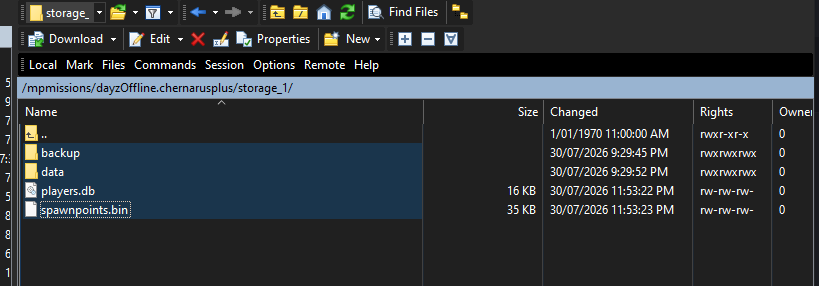
Data loss risk: players.db is an SQLite database running in write-ahead log mode. Copy it while the server is running and you get a torn, stale or outright unreadable file — and copy players.db without its -wal sibling and you silently lose every write that had not yet been folded into the main file. Either mistake produces a backup that looks fine in your file manager and destroys your world the day you restore it. Stop the instance, wait for Server Status to read Stopped, and only then start the transfer.
Click Stop on Overview. If players are online, run a Controlled Restart first so they are warned and can log out somewhere safe, then stop the instance once it is back up — restarting without rollbacks explains what an abrupt kill costs them.
Wait for the status pill. DayZ flushes persistence as it shuts down, so a copy started while the process is still exiting can catch the world mid-write. Stopped means the handles are closed and the files on disk are the truth.
Note: The panel’s own scheduled backups genuinely do not need downtime, and that is not a contradiction: the node takes a Volume Shadow Copy snapshot of the disk before it reads anything, so it gets a consistent point-in-time image while DayZ holds the database open. Your SFTP client has no equivalent trick — it reads live files one at a time.
2. Connect over SFTP and find your world folder
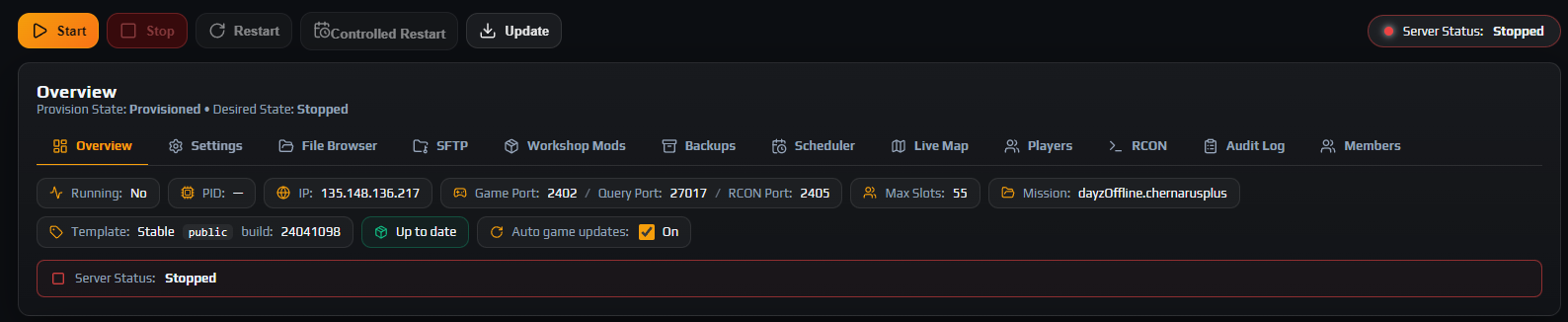
Go to Instances → your instance → SFTP and take the Host, Port and Username from the Connection card — each has its own Copy button. The username is your panel username, a dot, and eight hexadecimal characters identifying this instance, so copy it verbatim rather than retyping it.
Your session lands in a root holding exactly four folders: profiles, mpmissions, config and mods. Open mpmissions.
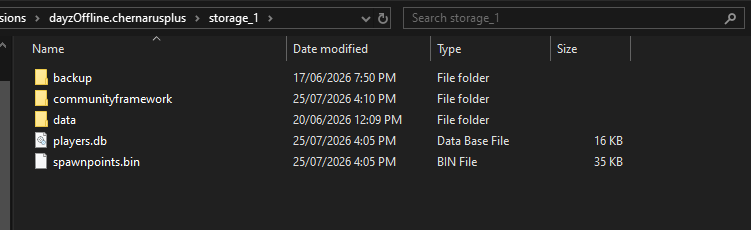
Inside is one folder per mission world. The one you want is the value shown as Mission on Overview — dayzOffline.chernarusplus on a default Chernarus instance. If you have ever switched maps you will see more than one, and only the current mission is live; the others are old worlds sitting dormant.
Open your world folder and you will find the mission configuration alongside a storage_* folder, normally storage_1. That storage folder is your persistence.
Note: Nothing else on the server matters for a persistence backup, and the game binaries and BattlEye working directory are outside the four shares anyway — they cannot be reached over SFTP at all.
3. Download the whole world folder
You can cherry-pick, but the reliable move is to drag the entire world folder to your local machine in one transfer. That captures all three of the things a restore might need, in the same layout the server expects them back in:
| What you are copying | What it holds | Matches the restore category |
|---|---|---|
storage_*/players.db plus -wal and -shm | Every character: inventory, position, health, stats. | Players DB |
Everything else inside storage_* | Built structures, vehicles, tents, buried stashes and other persisted world state. | World Data |
The world folder outside storage_* | Your economy and mission config — the db folder, cfgeconomycore.xml, cfgspawnabletypes.xml and the rest. | XMLs & JSONs & other(s) |
Laid out on disk it looks like this:
mpmissions/
  dayzOffline.chernarusplus/       download this whole folder
    db/                            types.xml, events.xml, globals.xml
    cfgeconomycore.xml
    cfgspawnabletypes.xml
    storage_1/
      players.db                   characters and inventory
      players.db-wal               writes not yet folded into players.db
      players.db-shm
      data/                        bases, vehicles, tents, stashes
Drop it into a local folder named for the instance and the moment you took it — myserver-chernarus-2026-07-30-0300 — and leave the structure exactly as it came down. Do not rename anything, and do not delete the -shm file because it looks like scratch data. A copy that mirrors the server is one you can put back with a plain overwrite.
Note: There is no size limit on SFTP downloads. The 2.5 GB ceiling applies to uploads only, so pulling a large world down is never the problem — pushing it back is where limits bite.
Careful: Do not start the instance part-way through the transfer to “check it still works”. The moment DayZ boots it reopens the database and begins writing, and the second half of your copy no longer matches the first.
4. Take serverDZ.cfg and a record of your mod list too
Persistence is the part you cannot recreate, but two more things are worth five seconds each while you are connected.
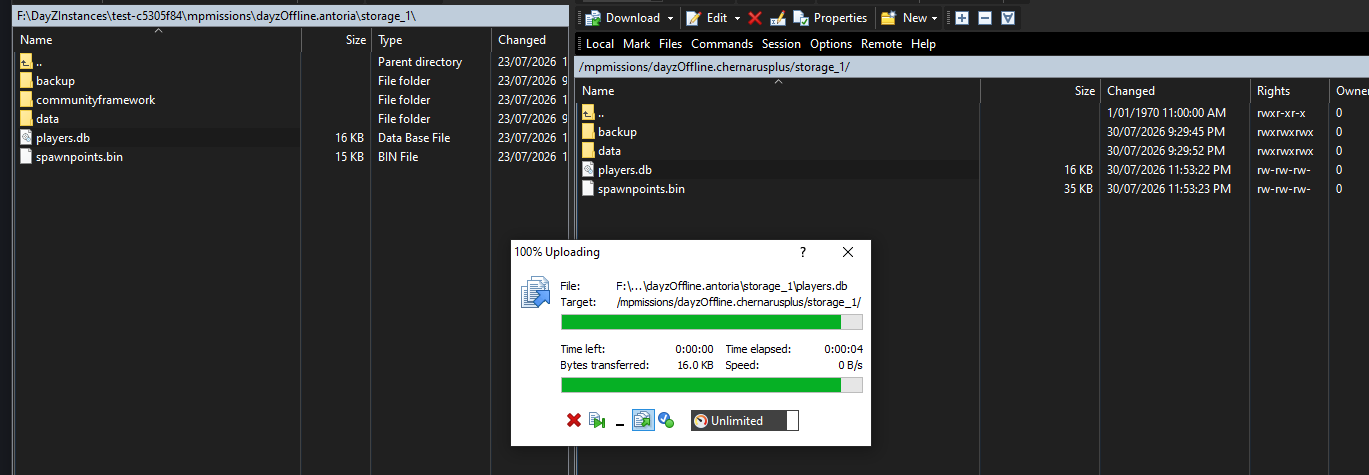
serverDZ.cfg. It lives in the config share. The panel writes this file for you from the typed Instance Settings editor, so it is reproducible — but a copy is a plain-text record of every value you tuned, and it is the first thing another host or a local test server will want. Grab whitelist.txt, ban.txt and priority.txt alongside it if you use them. All of these are protected files: you can download and overwrite them, but not delete or rename them over SFTP.
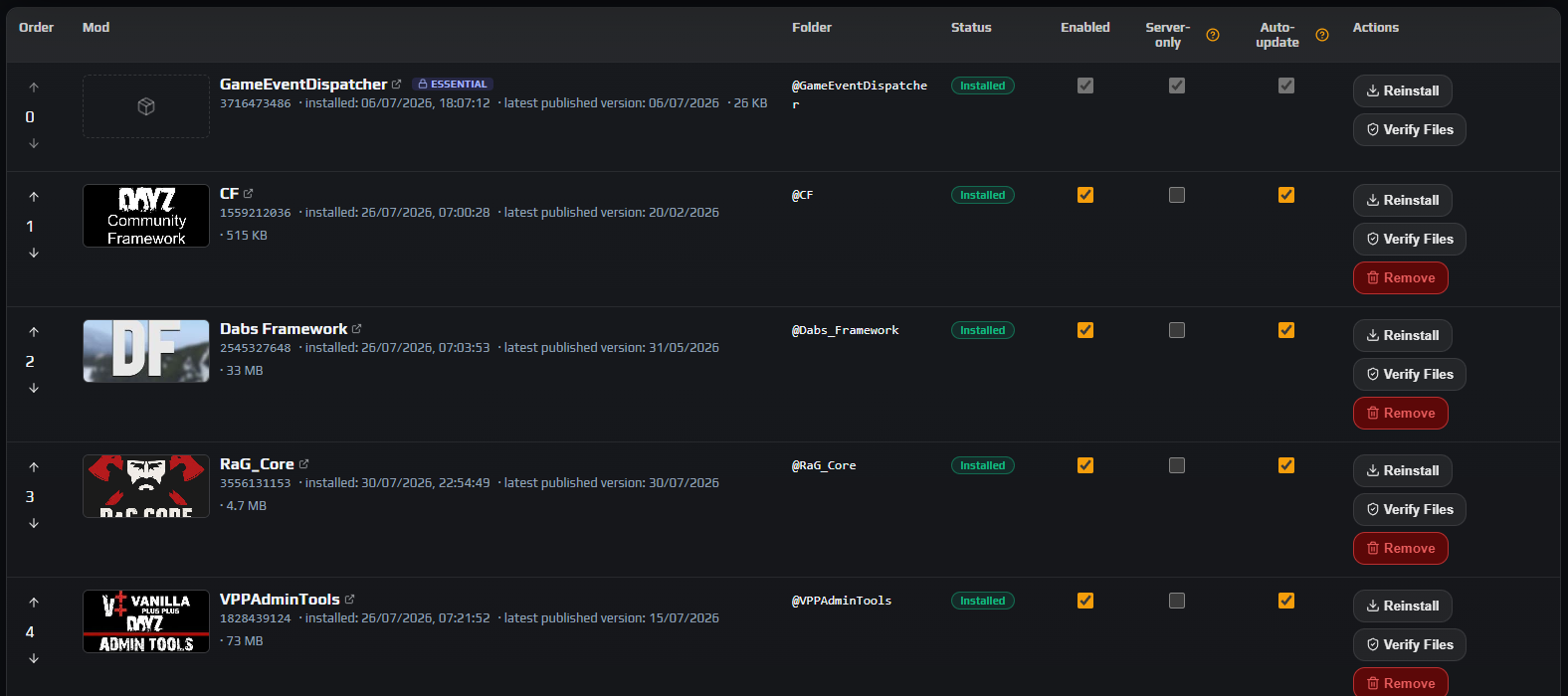
Your mod list. There is no export button, so make your own record. The Workshop Mods tab shows an Order column and each mod’s numeric Workshop ID — a screenshot of that table does the job, and the mods share gives you the same list as one @ModName folder per installed mod.
Note: Record the mod set with the backup, not separately. Persistence written while a mod was installed contains that mod’s items, and restoring it onto a server that no longer runs the mod is how you get a world full of errors. Mods marked ESSENTIAL come from the node template and are always present, so you only need to note the ones you added.
Careful: Do not plan on backing up and restoring mod payloads themselves. Mods are re-downloaded from the Steam Workshop when you add them by ID, and the upload filter rejects executable and script types outright (.exe, .dll, .bat, .cmd, .ps1, .sh, .msi, .scr, .com), so pushing a whole mod folder back does not end well. Re-add by ID and let the panel resolve dependencies — see installing Steam Workshop mods.
5. Verify the copy before you start the server again
The instance is still stopped, which means this is the only moment you can re-take a bad copy for free. Spend a minute on it.
- Compare counts and sizes. Put the remote and local panes side by side on the same folder; the file count and total size should match. Most clients flag a transfer that finished with skipped files — treat any skip as a failed backup, not a warning.
- Confirm all three database files.
players.db,players.db-walandplayers.db-shmmust be present locally if they are present on the server. After a clean shutdown the-walmay be zero bytes or absent, which is fine — what is not fine is it existing on the server and not in your copy. - Check the storage folder is not empty.
storage_1/datashould hold real files. An empty storage folder means you copied a shell. - Open one of the XMLs.
db/types.xmlin a text editor proves the text files came down intact rather than truncated. - If you zip it, open the zip. Confirm the archive lists the
storage_1folder and the database files. An archive nobody has opened is not a backup.
Careful: You find out a backup is bad on the one day you need it. Verifying now costs a minute; discovering it after a griefing incident costs your players their progress.
Once you are satisfied, click Start on Overview and confirm Server Status reads Running and Server FPS reports a number before you tell anyone the server is back.
6. Decide how many copies you keep, and for how long
The Backups tab is your short window — 30 days of node-side history, restored in place. Your own copies are the long window, and they only help if taking them is a habit.
- A rolling set. Three recent copies suits most communities. Take one, delete the oldest, keep moving.
- One before every risky change. An economy rewrite, a mod that writes to persistence, a map change, a version upgrade. Take it minutes before, not last night — the value is that it predates the change by as little as possible.
- One a month, kept. The copy that outlives the 30-day retention, and the one you will be glad of when something went wrong six weeks ago and nobody noticed.
- One before you leave. Moving hosts means taking a full copy while you still have SFTP access — see migrating a DayZ server to a new host.
Store them in two places, one of which is not your gaming PC, and label each copy with the date, the world and the mod set. Sizes are modest — even a large world is usually a few hundred megabytes zipped — so a year of monthly archives fits on any cloud drive.
Note: Automatic and manual backups are complements, not alternatives. Leave the Backups tab on a real frequency for the fast, frequent, category-level rollbacks it is good at — automatic backups and restore covers those — and keep your own copies for depth, portability and anything older than a month.
7. Put your own copy back when you need it
Restoring your copy is the download in reverse, with the same rule at the front of it.
Data loss risk: Stop the instance and wait for Stopped before you upload a single file. A running DayZ server holds players.db open and rewrites the storage folder as it goes and again on shutdown, so an upload under a live server is either refused on a locked file or flushed away the next time the server saves — and a partial write into an open database can corrupt every character on it.
- Stop the instance on Overview and wait for
Server Statusto readStopped. - Connect over SFTP and navigate to
mpmissions/<world>/— the same world folder you took the copy from. - Upload your saved folder over the top, letting your client overwrite. Take
players.db,players.db-walandplayers.db-shmtogether, from the same copy, in the same transfer. - Click Start and check the thing you restored actually looks right in game before you announce that you are back.
Data loss risk: Never mix files from different copies. A players.db paired with the -wal from another snapshot describes a state that never existed, and SQLite will either refuse it or apply writes that do not belong to it. One copy, all three files, one transfer.
Two limits shape the upload. SFTP takes single files up to 2.5 GB; the web File Browser stops at 300 MB, and a mature storage folder routinely exceeds that, so the browser uploader will reject exactly the files you most need to put back. And nothing on the server unpacks archives — there is no extract feature in the File Browser or over SFTP — so upload the unzipped folder tree, not the zip.
Careful: An upload overwrites what it matches and leaves everything else alone, so files that exist live but not in your copy survive the restore. For a true replacement rather than a merge, delete the files inside storage_* first — that needs the Delete files permission and is irreversible, so only do it when you mean to discard the live world.
Note: If the copy you want is one the panel took rather than one you took, you do not need SFTP at all — use Restore on the Backups tab, which lets you put back Players DB, World Data and XMLs & JSONs & other(s) independently. Automatic backups and restore walks through it.
Troubleshooting
My downloaded players.db is a different size to the one on the server, or it will not open
Why it happens. It was copied while the instance was running. SQLite in write-ahead log mode is being written to continuously, so a live read catches the file mid-transaction and produces something torn or stale. Your file manager has no way to tell you this — the file looks perfectly normal.
How to fix it. Delete the bad copy so you never restore it by accident, stop the instance, wait for Stopped, and take it again. If you cannot stop the server right now, use the Backups tab instead: the node snapshots the disk first, so its automatic backups are consistent even with players online.
I restored my own backup and players lost the last few hours of progress
Why it happens. Almost always a missing players.db-wal. The write-ahead log holds committed changes that have not yet been folded into players.db, so a copy of the main file alone rolls back to whenever the last checkpoint happened. Copying while the server was running produces the same symptom.
How to fix it. Restore again from a copy that includes all three files, taken after the instance reported Stopped. Going forward, download the whole storage_* folder rather than picking files out of it — then there is nothing to forget.
The File Browser will not upload my storage folder back
Why it happens. The web uploader caps a single file at 300 MB and oversized files are skipped and reported in the upload summary. A mature storage_1 folder frequently contains files past that, and there is no extract feature to work around it by uploading a zip.
How to fix it. Use SFTP, which takes single files up to 2.5 GB. This is exactly the case SFTP exists for — see connecting with SFTP. Upload the unzipped folder tree; nothing on the server can unpack an archive for you.
Downloading a file in the File Browser fails with File too large to read
Why it happens. The web file manager reads a file into memory to serve it, and that path is capped at 50 MB — the error reads File too large to read (>52 MB). players.db on a busy server passes that within weeks, and the world data usually already has.
How to fix it. Take it over SFTP, where downloads have no size cap at all. Use the File Browser for reading logs and editing XML, and SFTP for anything binary or bulky.
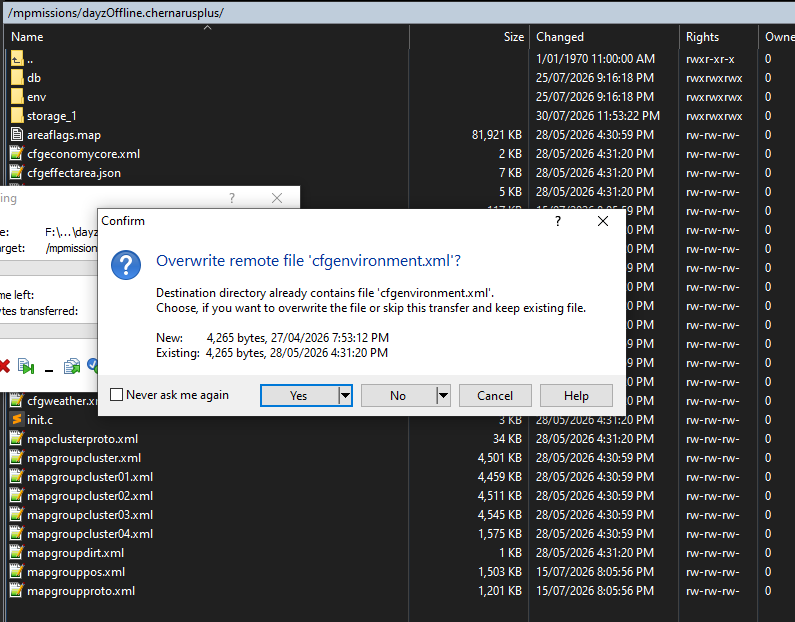
The transfer finished but some files were skipped or refused
Why it happens. Three limits look alike from the client. Downloads need Read files on your Members grant, uploads additionally need Write files, and the upload filter rejects .exe, .dll, .bat, .cmd, .ps1, .sh, .msi, .scr and .com outright.
How to fix it. Read your client’s transfer log and find the first failure rather than the last, then check the extension and your permissions under Members. Never treat a partially completed transfer as a backup — delete it and start over.
Frequently asked questions
Do I really have to stop the server to copy players.db?
Yes, if you want the copy to be usable. players.db is an SQLite database in write-ahead log mode that DayZ holds open and writes to continuously, so reading it live gives you a torn or stale file. The panel’s scheduled backups avoid the problem a different way — the node takes a Volume Shadow Copy snapshot of the disk before reading, which is why those need no downtime and a hand-made copy does.
Which files exactly are the persistence?
Everything under mpmissions/<world>/storage_*/. That is players.db with its players.db-wal and players.db-shm companions, which hold every character and inventory, plus the rest of the folder, which holds built structures, vehicles, tents and buried stashes. Your economy and mission config — db/types.xml and friends — sits one level up in the world folder and is worth taking in the same pass.
Can I download one of the panel’s automatic backups instead?
No. Automatic backups live on the node and are only ever restored in place, so the Backups tab has no download button and no create-now button. A copy on your own disk has to be taken over SFTP, which is also what removes the 30-day retention limit — a file you have already downloaded is yours for as long as you keep it.
Can I zip the folder on the server before downloading it?
No — there is no compress or extract feature in the File Browser or over SFTP, in either direction. Download the folder as it is and compress it locally afterwards if you want a single tidy archive. The same limitation is why a restore has to be an upload of the unzipped folder tree rather than a zip you unpack on the server.
How often should I take a manual backup?
Immediately before anything risky, and on a light routine otherwise — three rolling copies plus one a month kept as an archive covers most communities. The automatic Backups tab already handles frequent, recent rollbacks, so your manual copies exist to cover the two things it cannot: getting the data off the node, and keeping it longer than 30 days.
Can I load my copy onto a local DayZ server to test something?
Yes, and it is one of the better reasons to keep manual copies. A DayZ server you run yourself uses the same mpmissions/<world>/storage_* layout, so the folder drops straight in with the local server stopped. Match the mod set as closely as you can — persistence written with a mod installed expects that mod to still be present — and treat the result as a sandbox, not a mirror.